
Interlibrary Loan (or ILL) is available to UPEI students, faculty, staff, and registered public borrowers.
You can use ILL to get an article, book, or other research material from another library, or to request a scanned copy of an article or chapter from our library’s print collection.
This service is completely free for students, faculty, and staff of UPEI since costs are paid by the University. However, it is not an instant service, and you may need to wait a few days to receive a PDF of an article or book chapter, or even longer to receive a whole book by mail.
Here are two ways to make an interlibrary loan request:
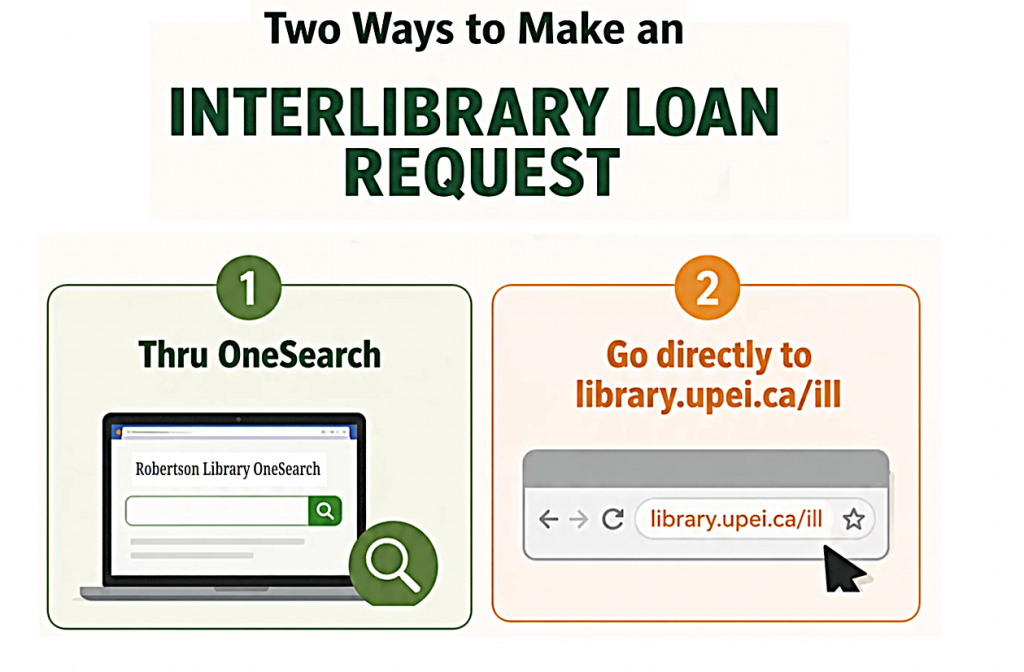
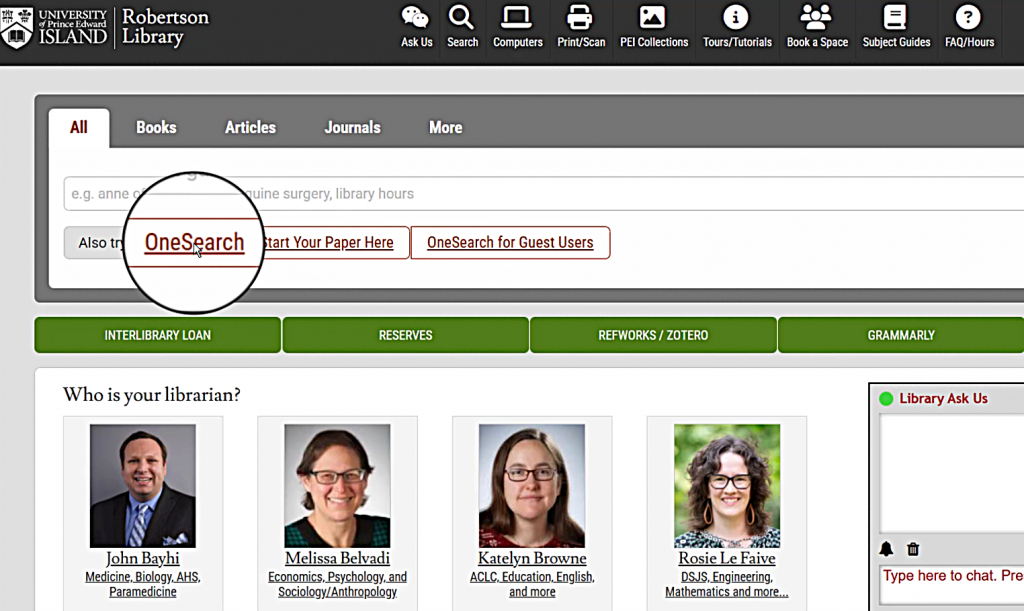
When you’re searching in OneSearch or our library’s databases,
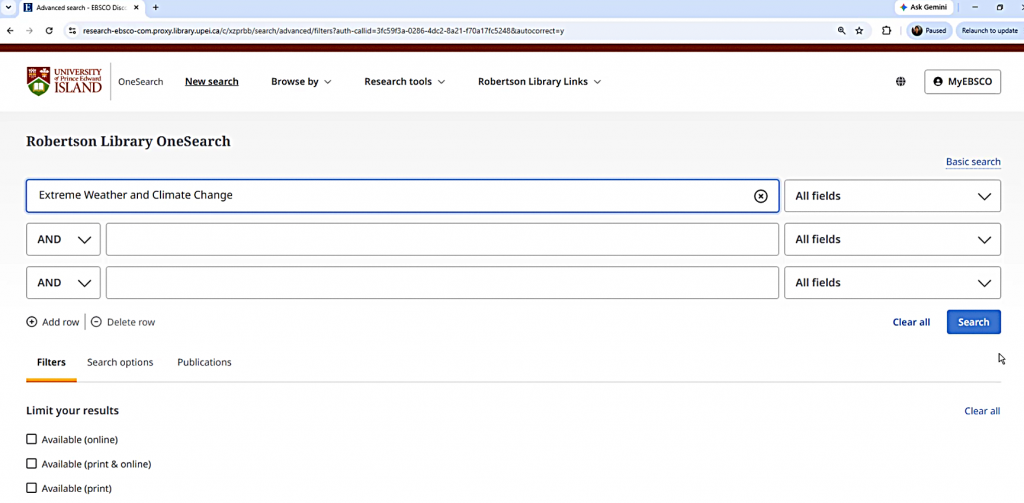
the “Make an Interlibrary Loan Request” link appears below most items.
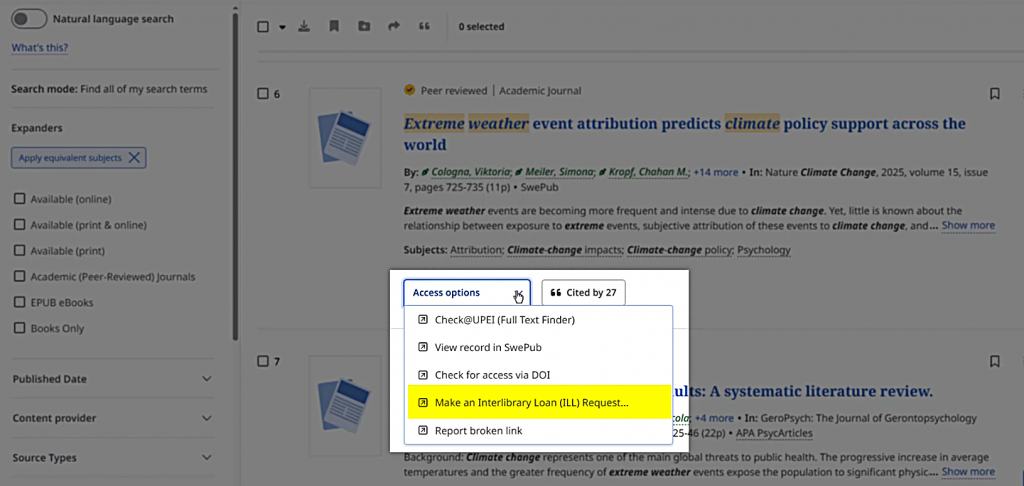
Before requesting an interlibrary loan, check the other Access Options to see if they lead to the full text.
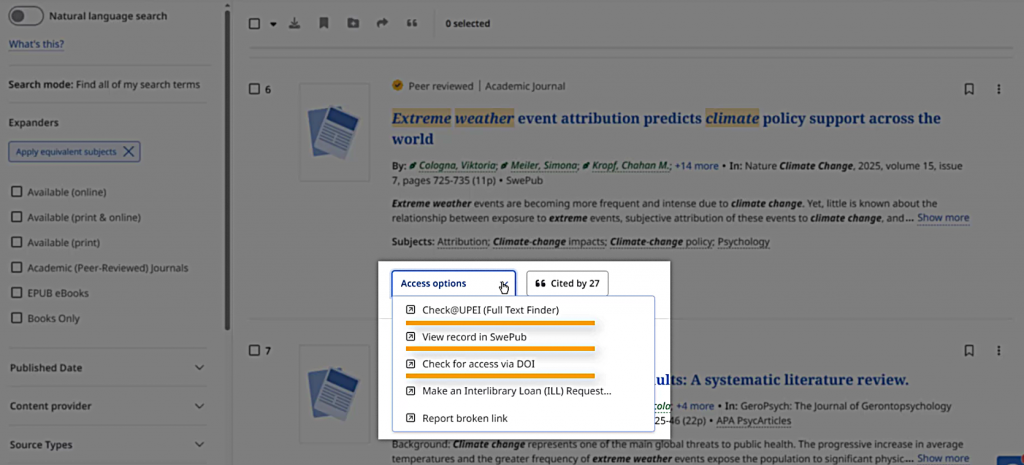
If you select the “Make an Interlibrary Loan Request” link, you will be taken to the Interlibrary Loan request form with information about your item already filled out.
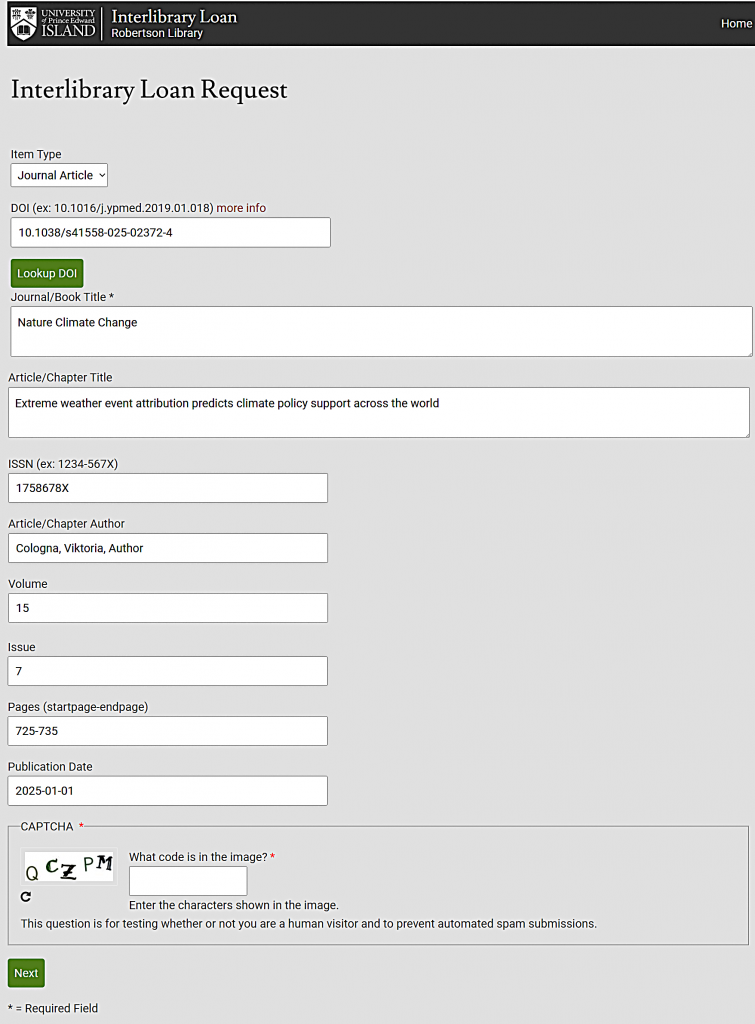
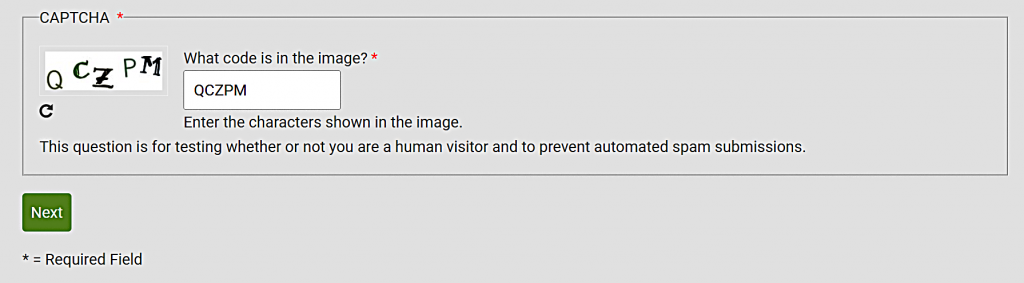
Double-check the information to make sure it’s accurate. Make sure to enter the captcha code shown in the image before clicking the “Next” button.
The second page of the form will ask for your credentials and contact information.
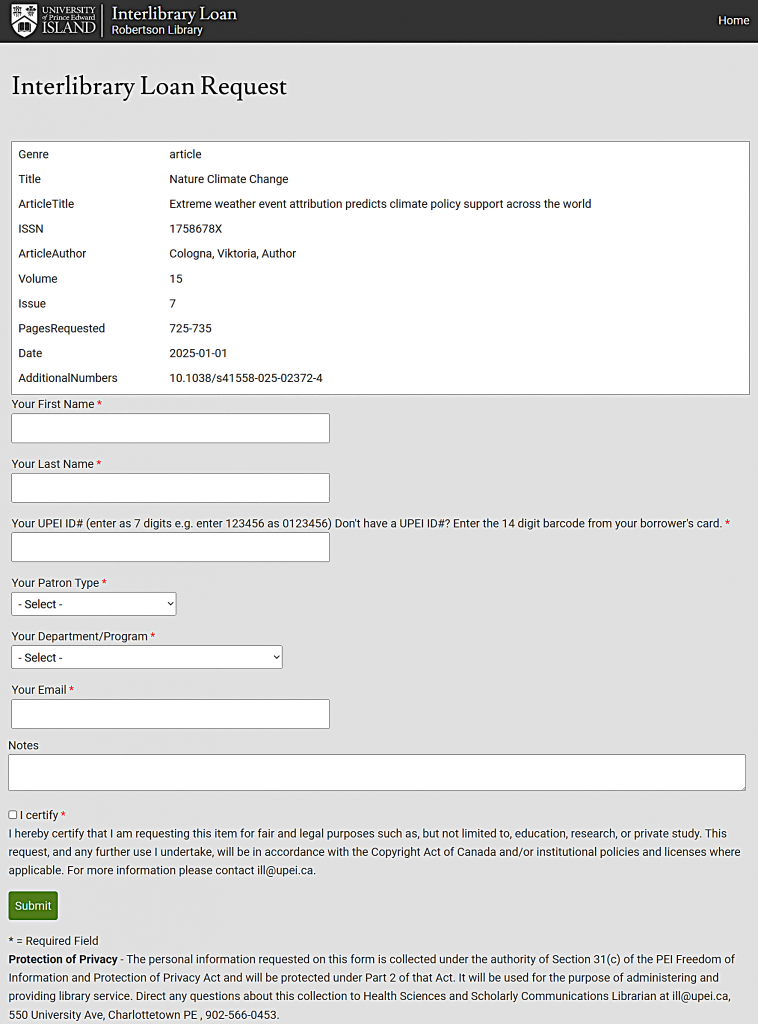
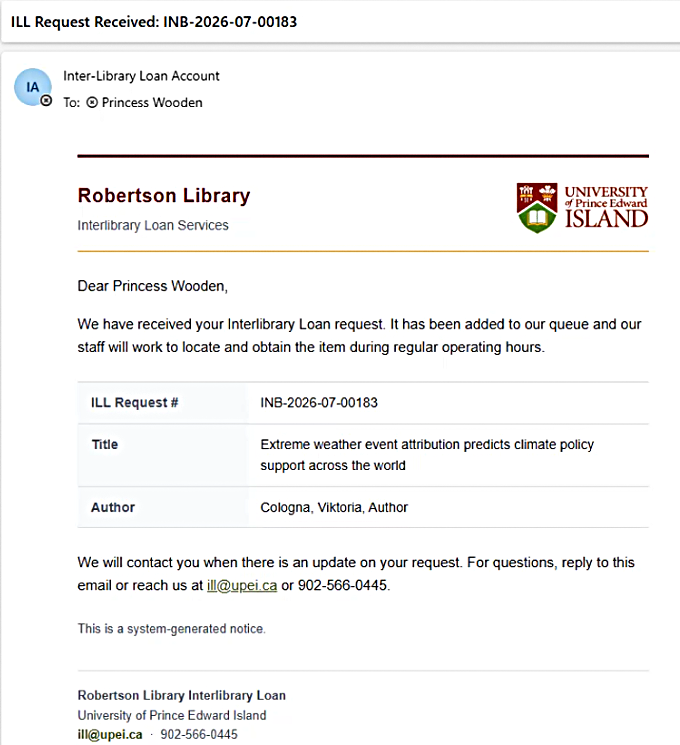
After you submit the form, check your e-mail for confirmation that your request has been received.
Other times, you may want to request an item without going through OneSearch.
You can go directly to library.upei.ca/ill or select the green “Interlibrary Loan” button on the library’s homepage.
This link is located below the search box and above the librarian pictures. On larger screens, the button is on the left;
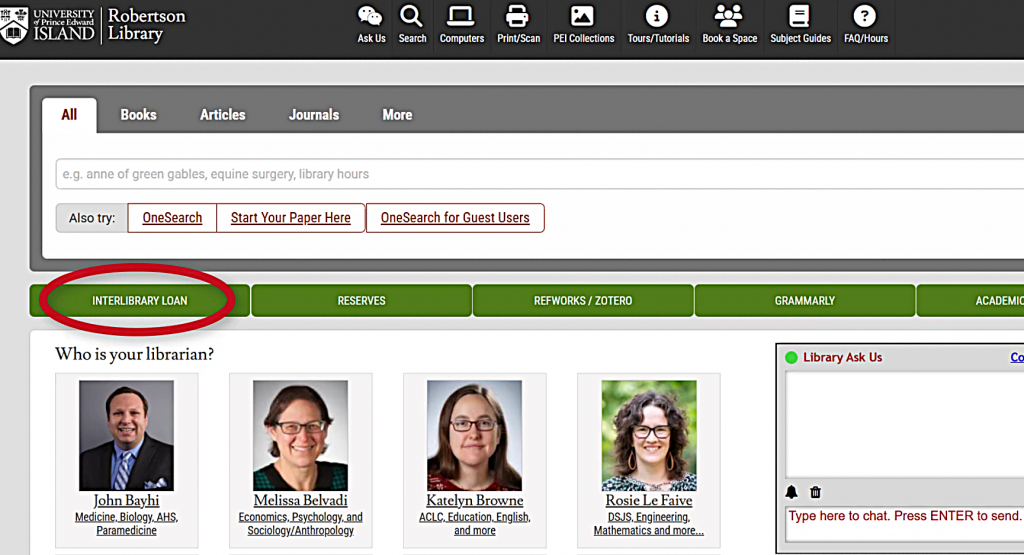
on smaller screens, it’s at the top of the set of green buttons.
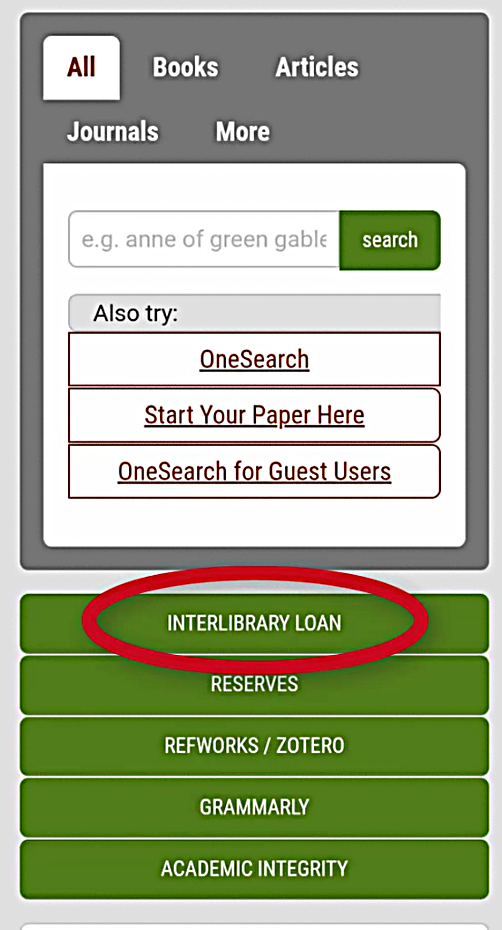
Select the Interlibrary Loan link to go to the Interlibrary Loan webpage on the Library website.
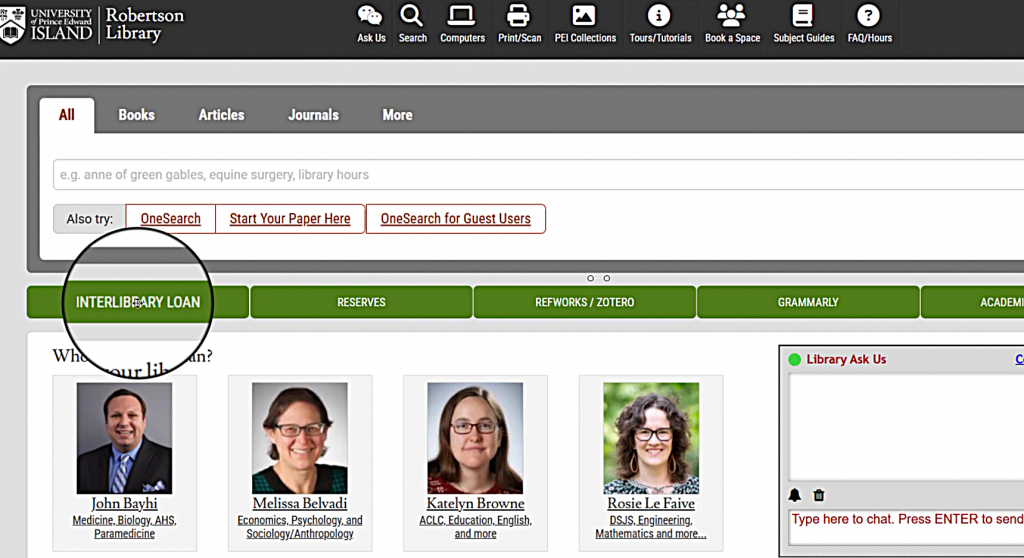
On this page, you will find the information on how to submit a request and how to retrieve a requested item.
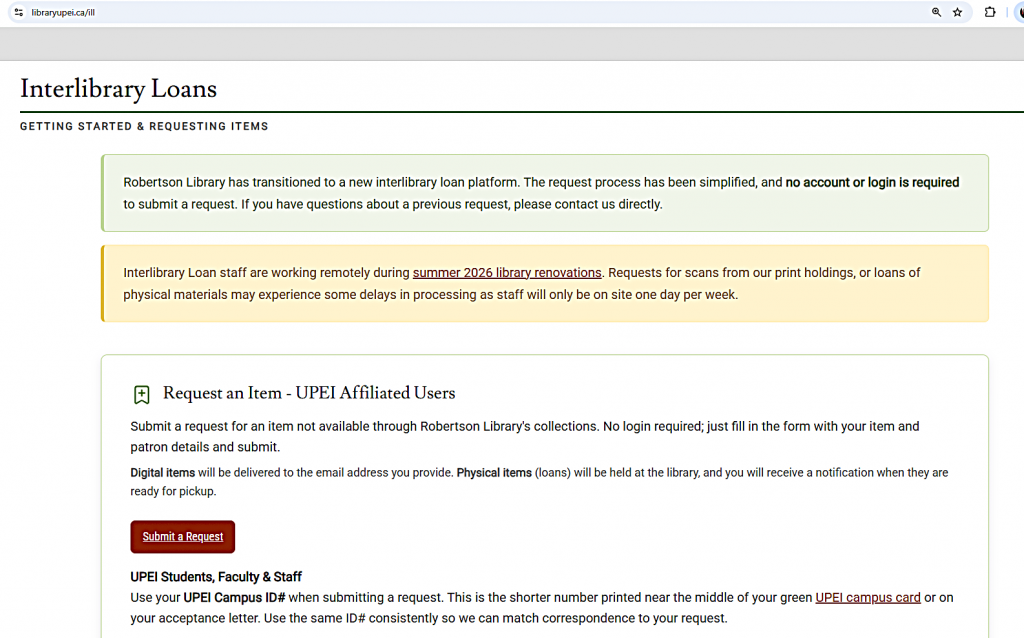
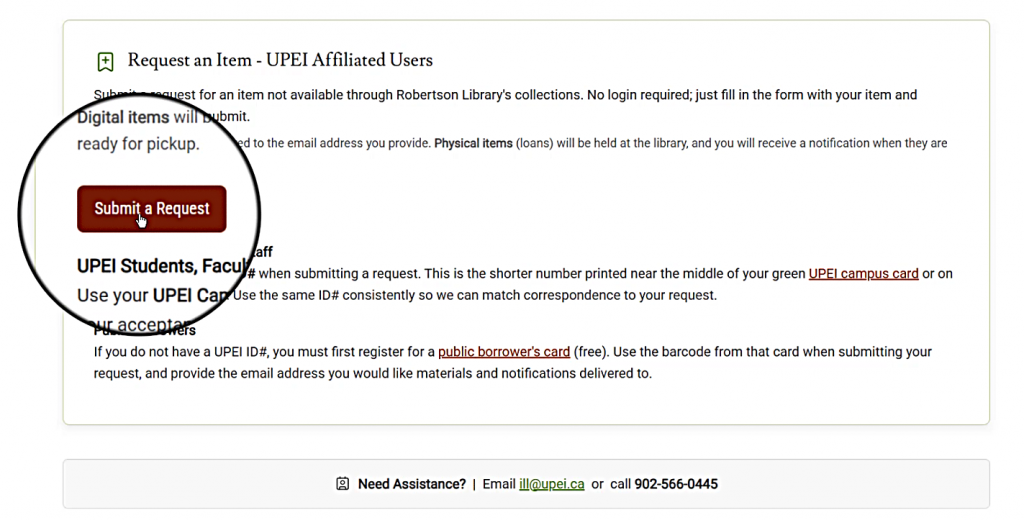
Select the “Submit a Request” button to be directed to the submission form.
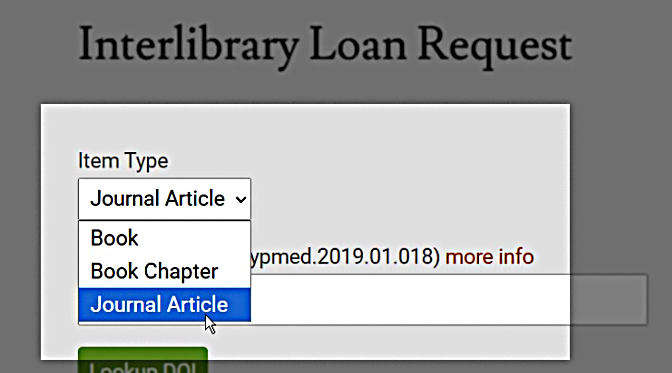
On the first page of the form, use the “Item Type” options to tell us whether you are requesting a whole book, a book chapter, or a journal article.
Make sure to provide the citation details of the material you are requesting, such as title and year of publication.
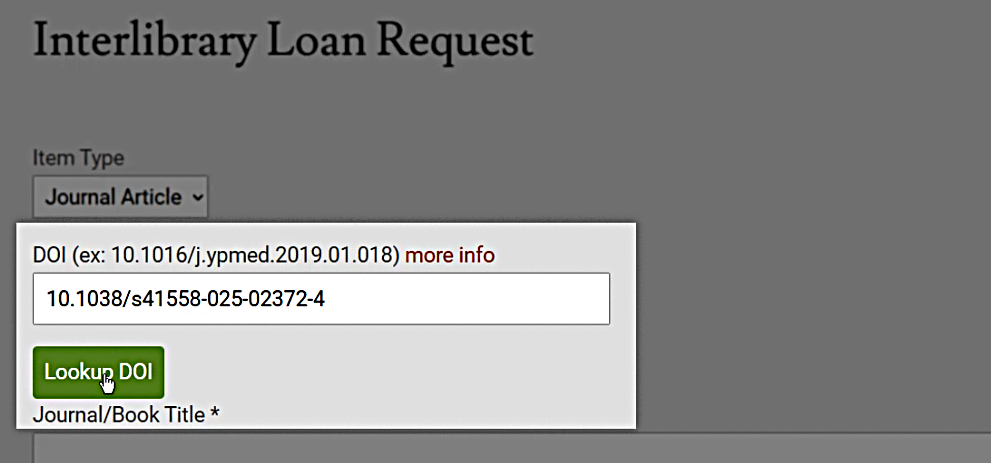
If you know the DOI of the item you are requesting, you can use the DOI lookup tool to autocomplete the citation information in the form.
The second page of the form asks for your contact information, such as your Campus ID number and email address.
After submitting your request, check your email for confirmation that your request has been submitted.
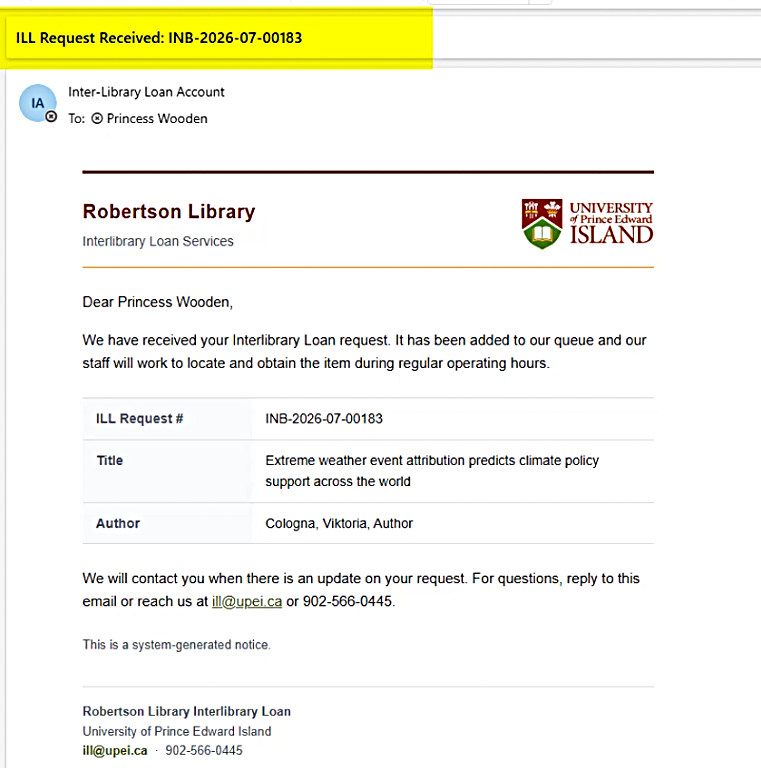
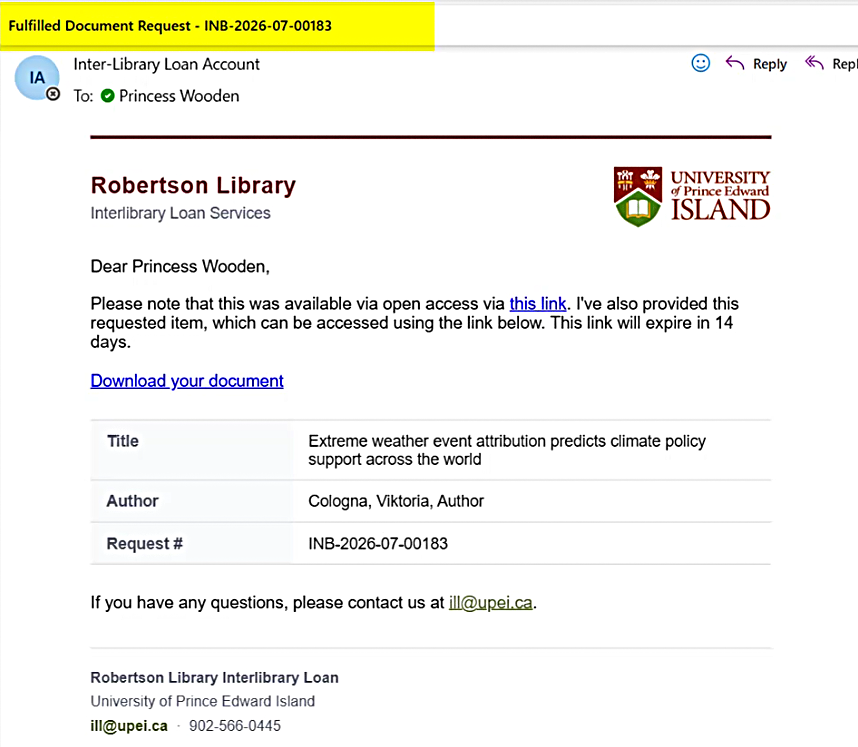
If Robertson Library already has the item you’ve requested, we will scan it for you or send you information about accessing the material.
Otherwise, your request will be sent to other libraries. It may take several days for your item to be sent to UPEI for you.
Once the item you requested becomes available, you will receive an email from the ILL office with instructions on how to retrieve the material you requested.
If you have any questions or problems with your ILL requests, or if you require further assistance, please contact the ILL Office by emailing ill@upei.ca or calling 902-566-0445.
A video version of this tutorial is also available.