
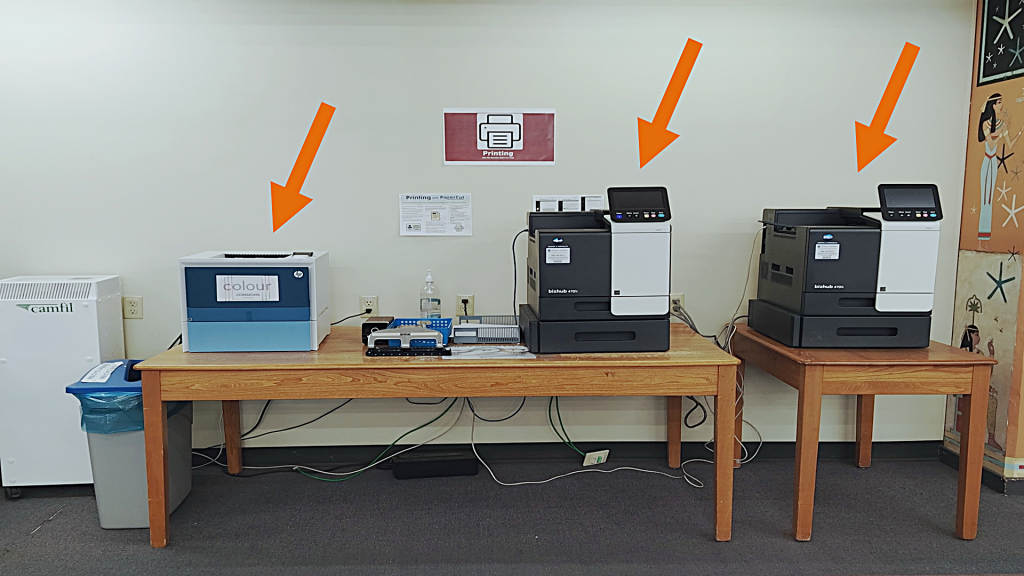
Robertson Library offers three printers in the Learning Commons (located on the main floor) that you can use to print your document/s. The available printers are:
● Black Commons - Single Sided,
● Black Commons - Double Sided, and
● Colour Commons
Here are the costs:
● Black & White (Single Sided) is $0.10 per page
● Black & White (Double Sided) is $0.16 per page
● Colour (Single Sided) is $0.20 per page
Before you print, ensure that you have sufficient funds in your PaperCut account. Go to papercut.upei.ca, then log in using your UPEI username and password.
This is the same username and password that you would use to access Moodle or your UPEI email.
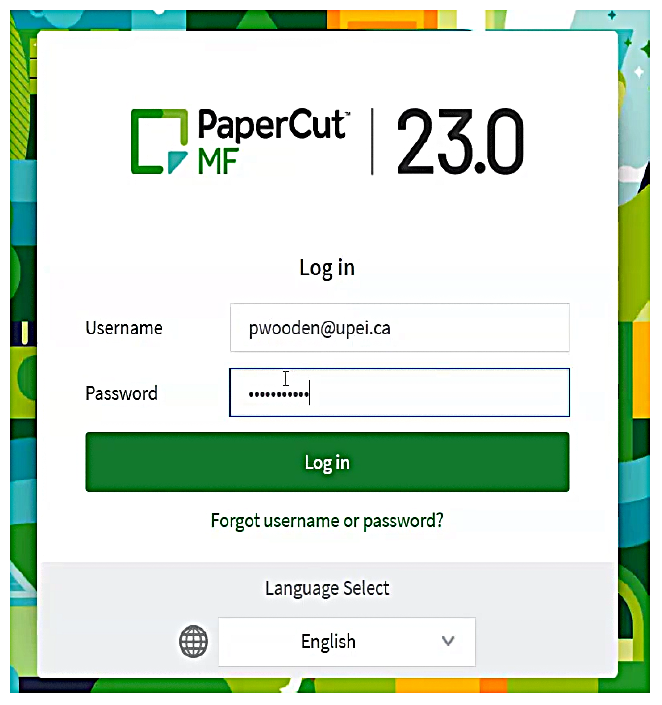
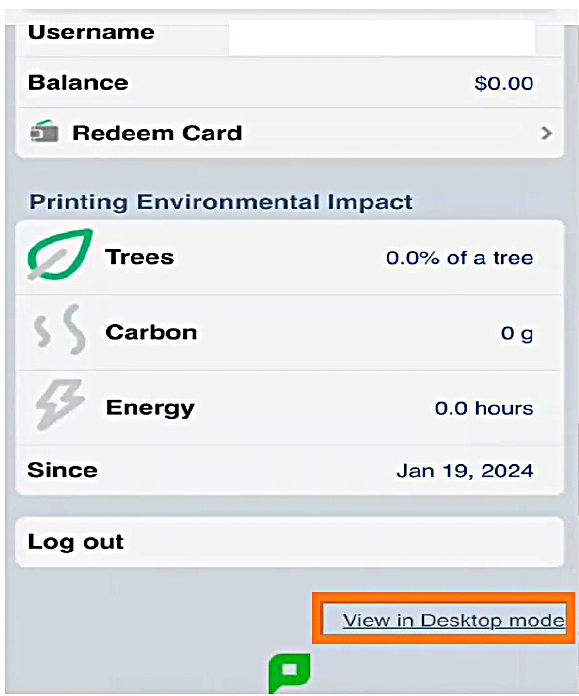
If you are using your phone, use the “View in Desktop Mode” link at the bottom of the page.
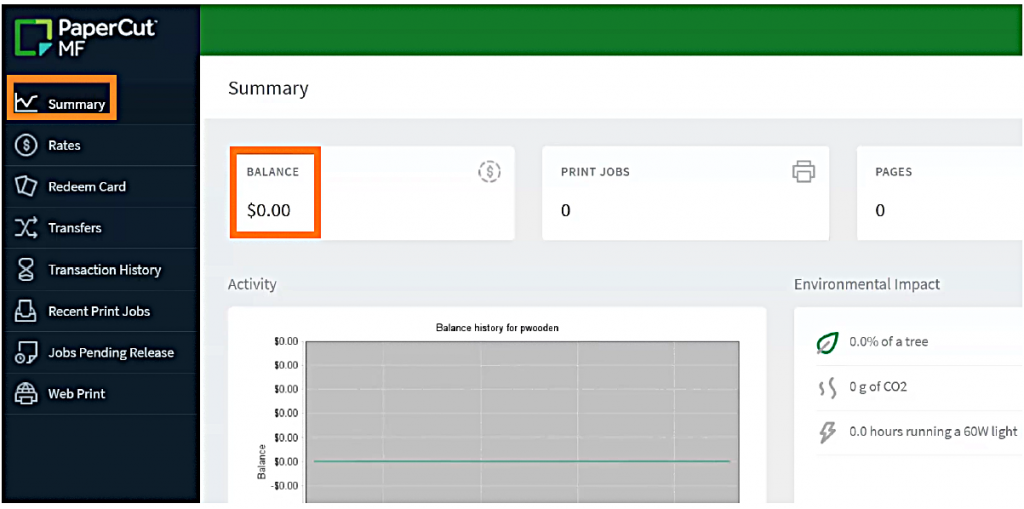
To check your funds, click the Summary tab and you can view your account balance.
You can add money to your account with cash or by using a debit or credit card online.
For Cash, visit the Service Desk with your campus card and the cash amount you wish to add.
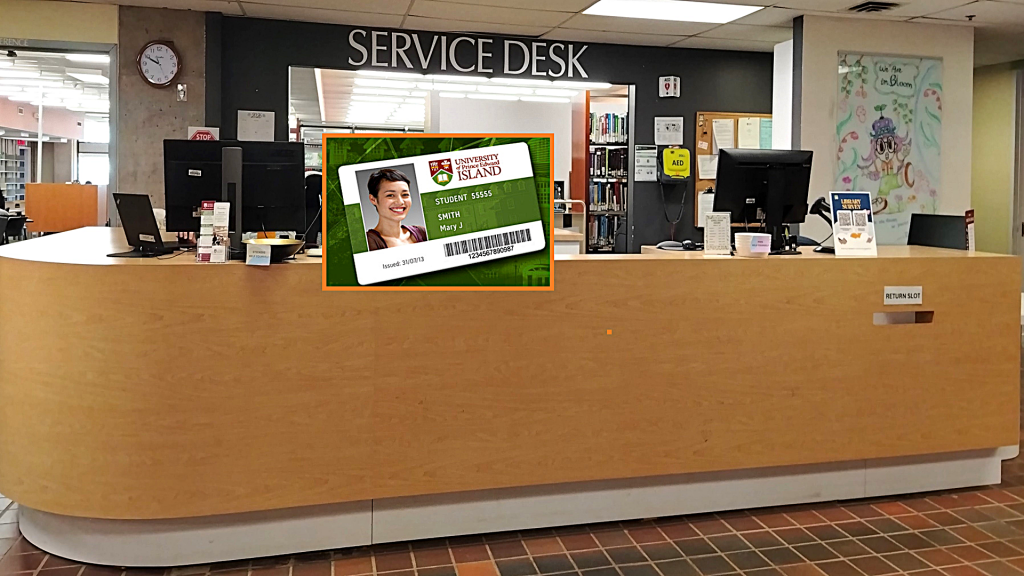
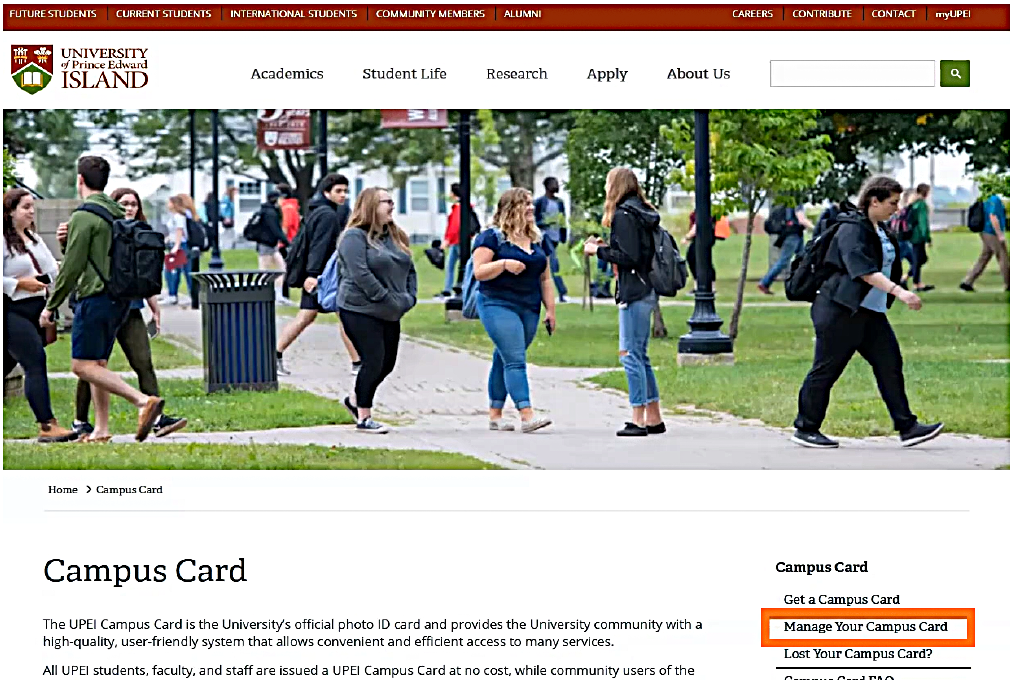
To add money Online, go to upei.ca/campuscard.
Choose Manage Your Campus Card on the right side of the page.
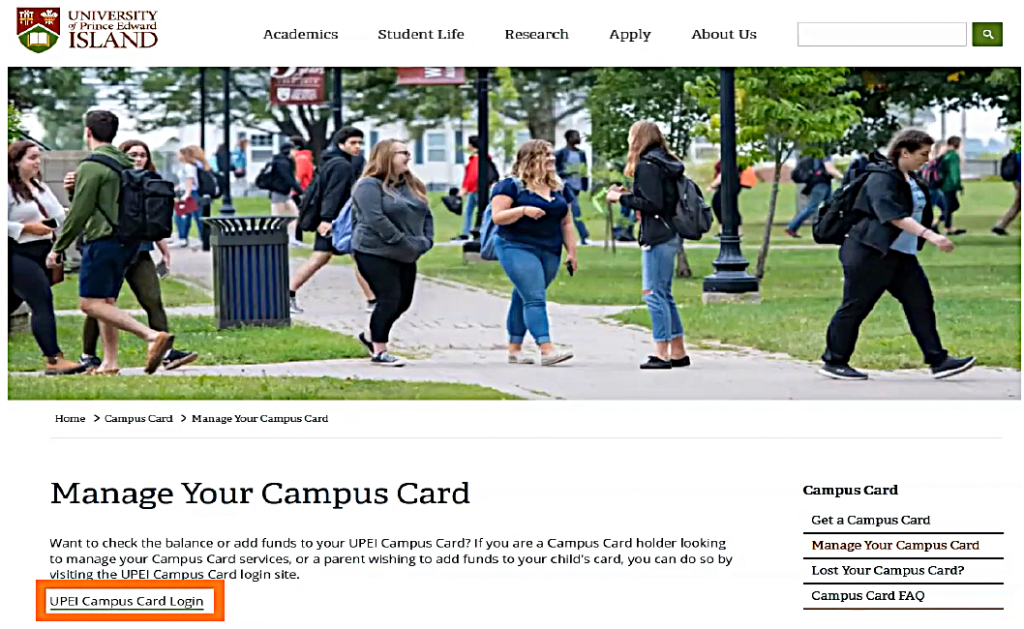
Then click the UPEI Campus Card Login link.
Choose students from the options,
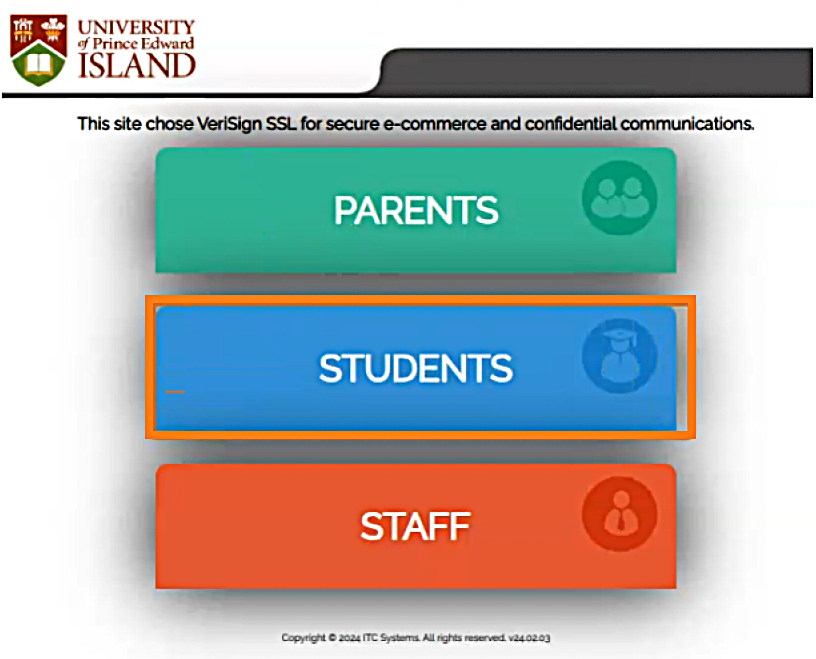
then, enter your UPEI username and password.
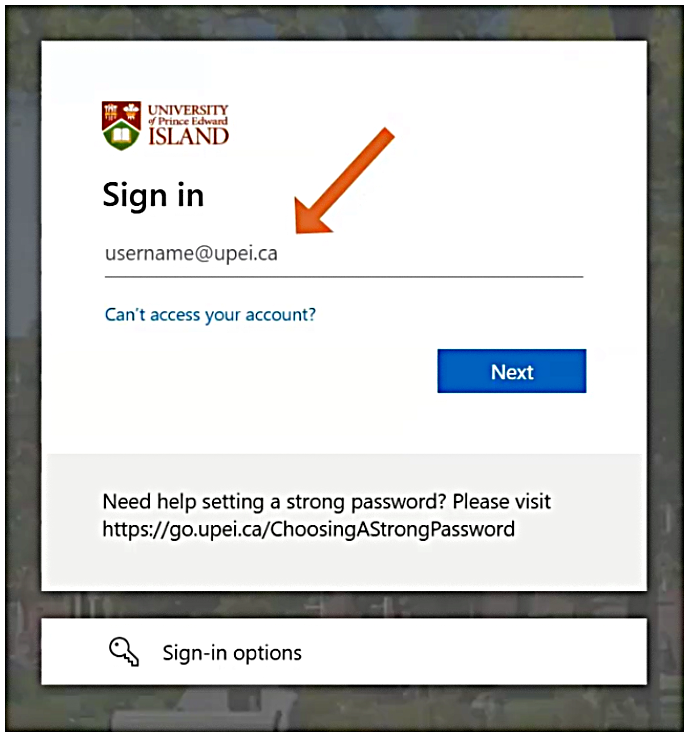
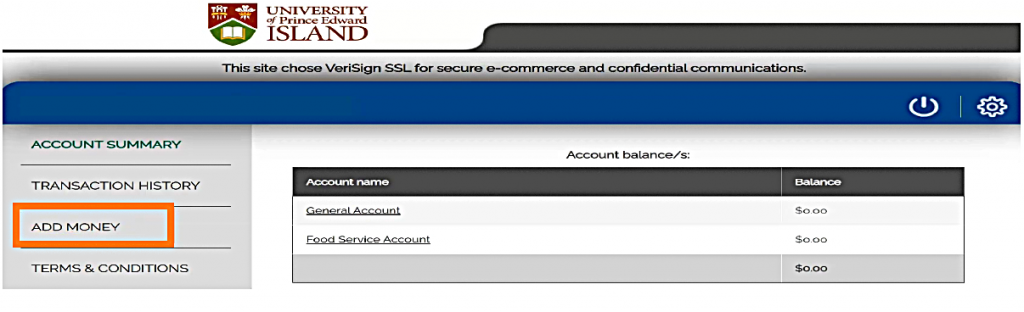
Choose Add Money on the left side of the page
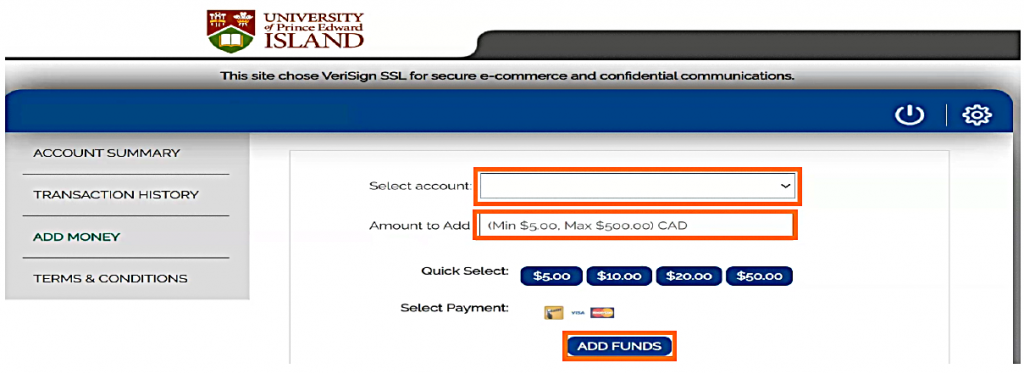
then enter your credit or debit card details and the amount you wish to add on your campus card.
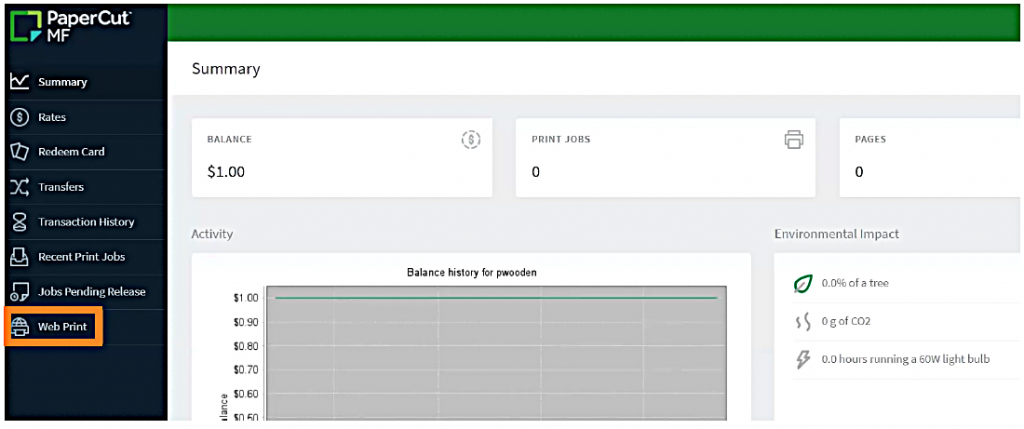
To start Printing, make sure you are logged in to your PaperCut account.
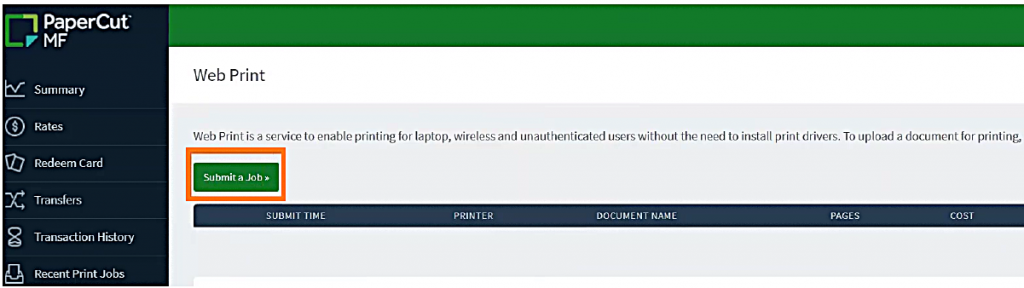
Choose Webprint on the left side of the page.
Use the Submit A Job button.
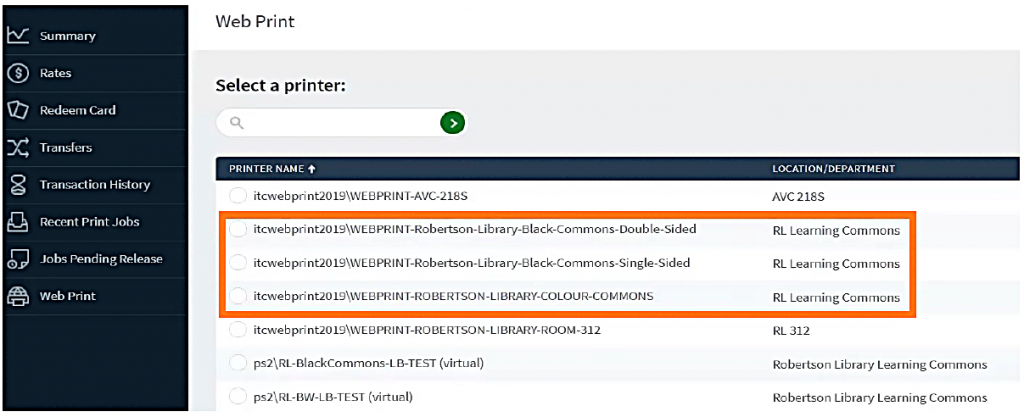
Select your desired printer. Note that you should only choose from these three printers:
○ WEBPRINT-Robertson-Library-Black-Commons-Single-Sided
○ WEBPRINT-Robertson-Library-Black-Commons-Double-Sided
○ WEBPRINT-Robertson-Library-Colour-Commons
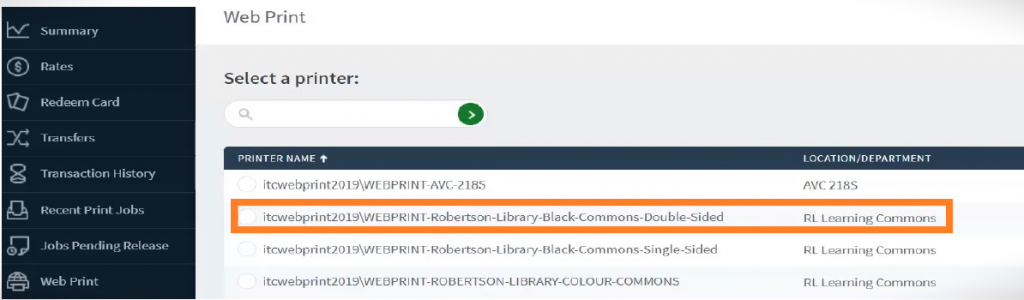
For this example, I will choose the WEBPRINT-Robertson-Library-Black-Commons-Double-Sided
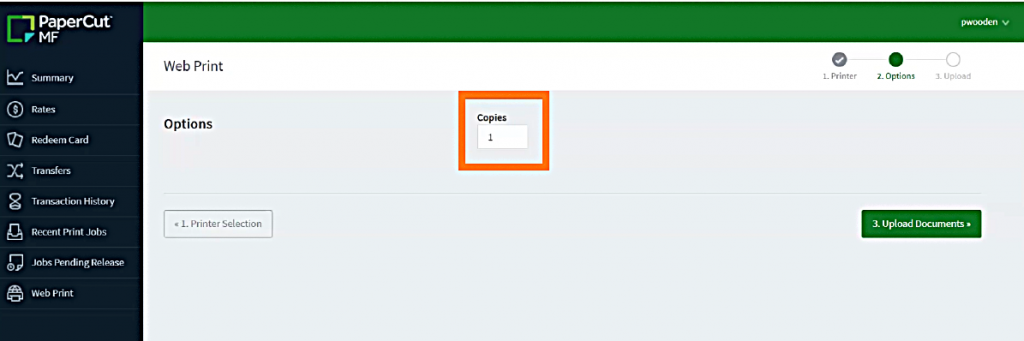
Now I’m ready to upload my document. In this box, I can input the number of copies of the document that I need to print. Since I only need one copy, I will leave the number of copies to one.
We recommend uploading your document in PDF format for the best results. Other file types like DOC, PPT, and PNG are supported, but PDF is the most reliable. Additionally, please ensure your document is formatted to letter size (8.5” x 11”).
Click Upload Complete.
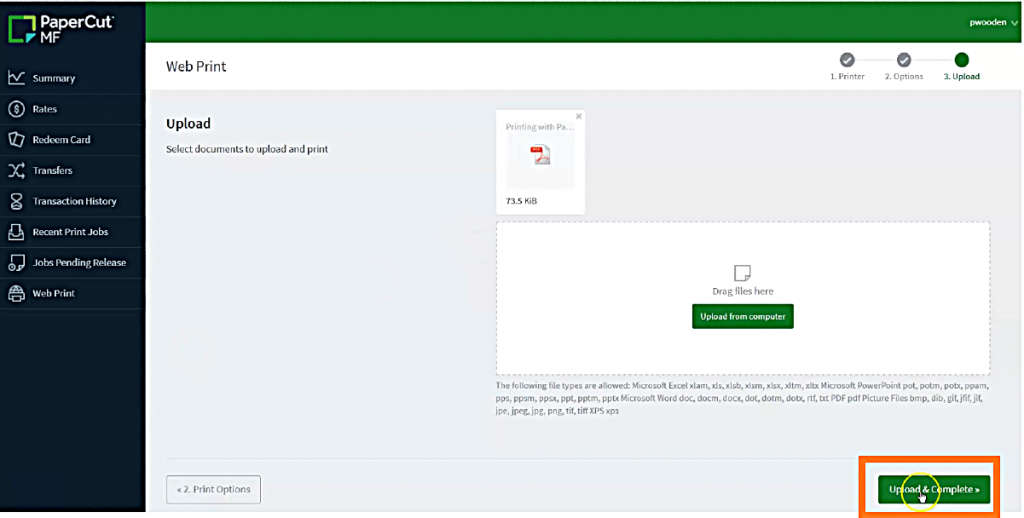
Once your document is uploaded, it will be processed, and you can collect your printout from the selected printer.
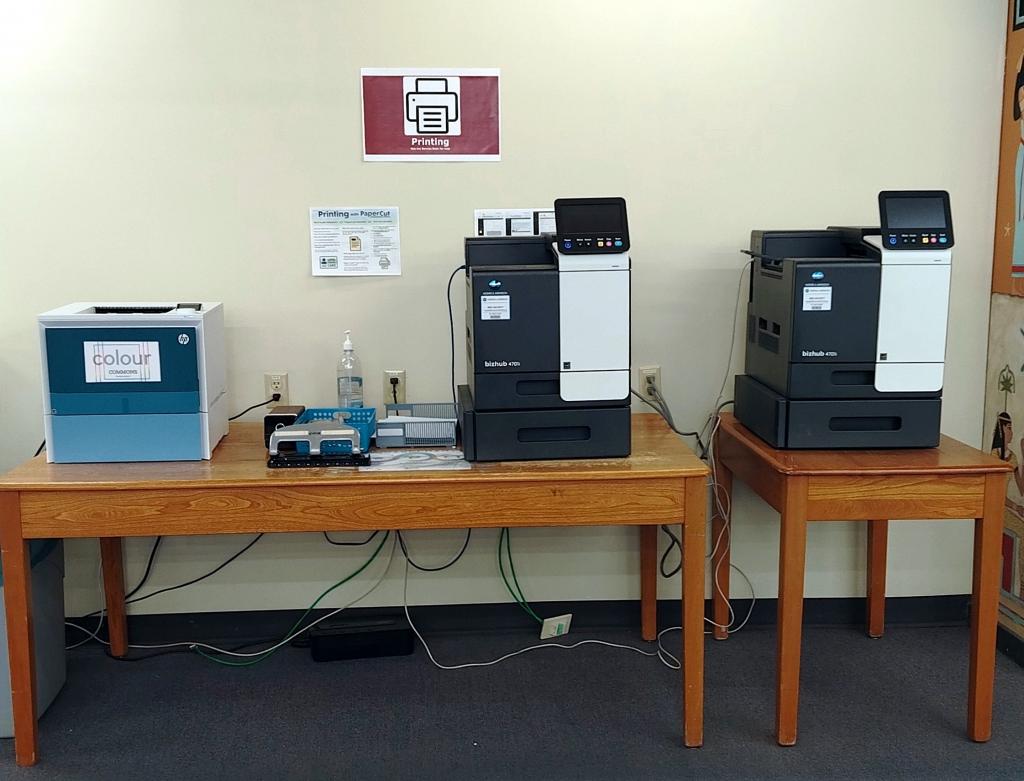
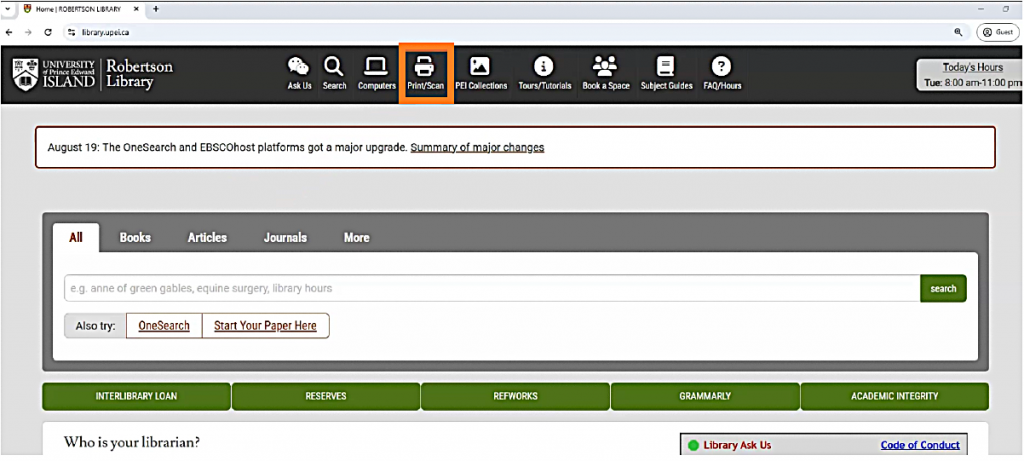
The library offers additional printing and scanning services. For more details on that, visit the library website and hover over the Print/Scan icon at the top of the page.
If you need more help, ask us at the service desk, phone us at (902)-566-0583, send an email to reference@upei.ca, or use the chat tool on the library website.
We are here for you.
A video version of this tutorial is also available.