
Welcome to this tutorial on finding veterinary medicine evidence using the EBSCO version of CAB.
To access CAB, go to the Library Homepage and hover over the search icon at the top of the page.
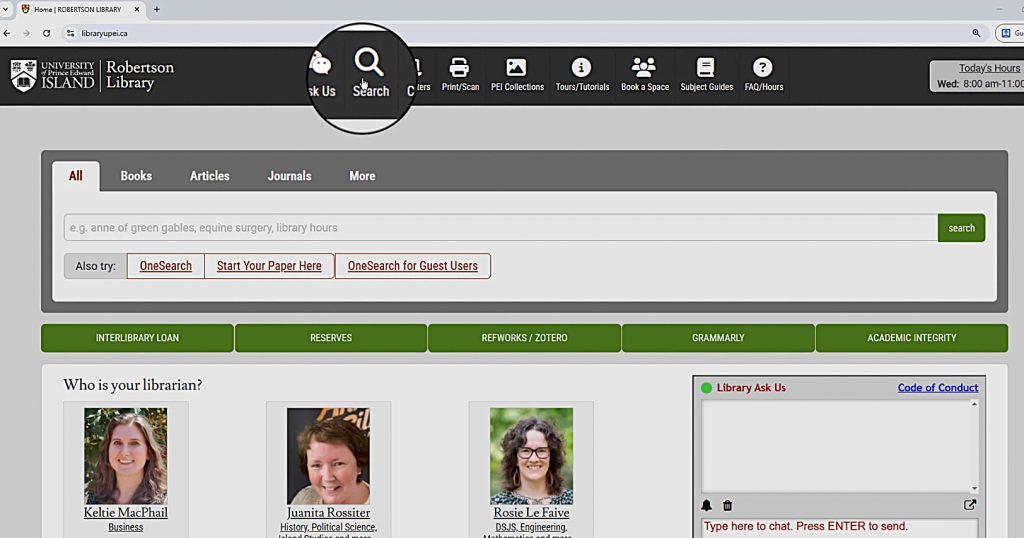
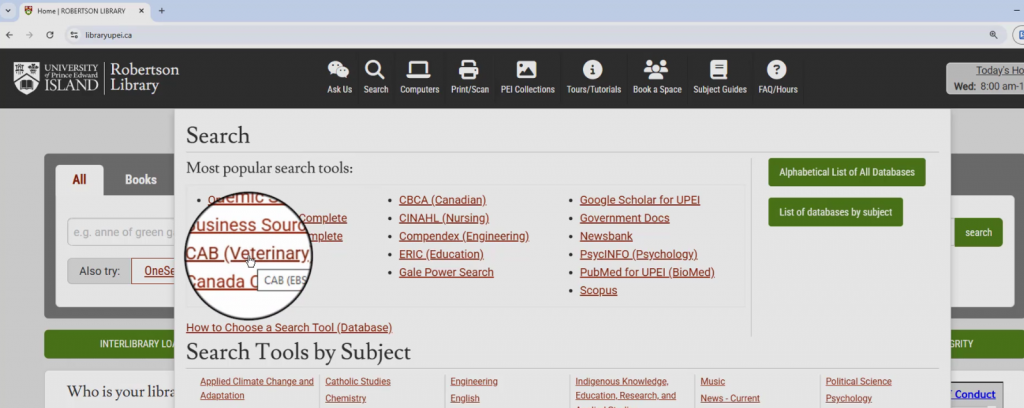
Then, select CAB (Veterinary) from the list of most popular search tools.
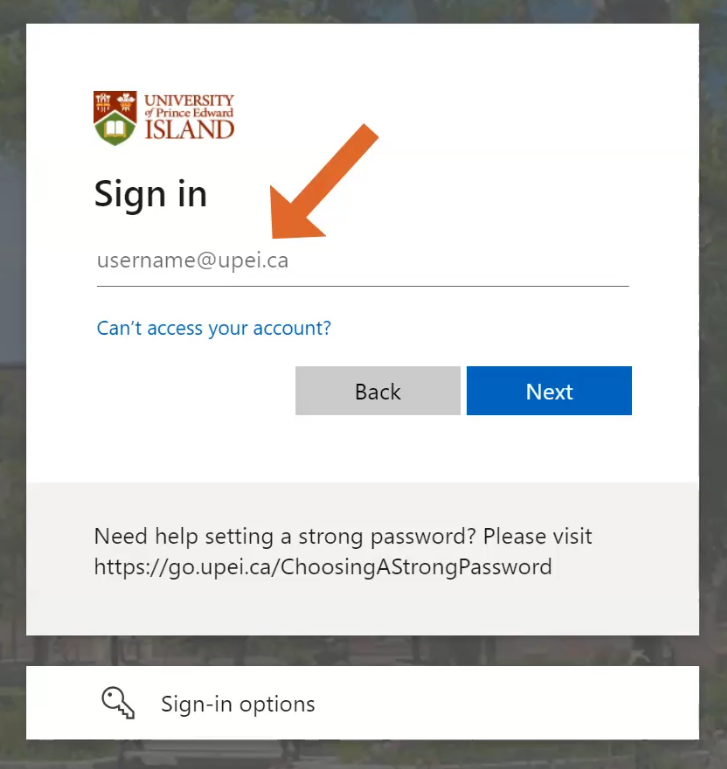
If you’re off campus, you will be asked to log in. Use your UPEI username and password to log in. This is the same username and password that you would use to access Moodle or your UPEI email.
If you are on campus, you should be taken directly to the Advanced Search page.
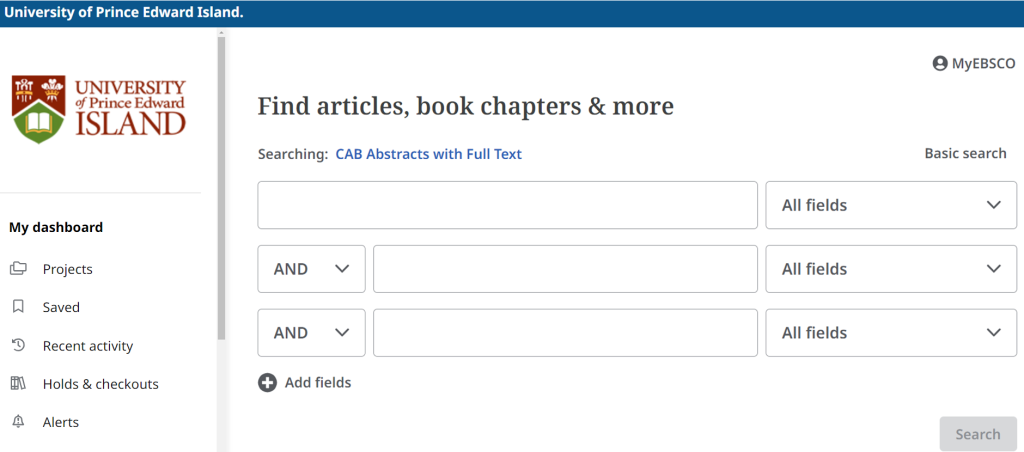
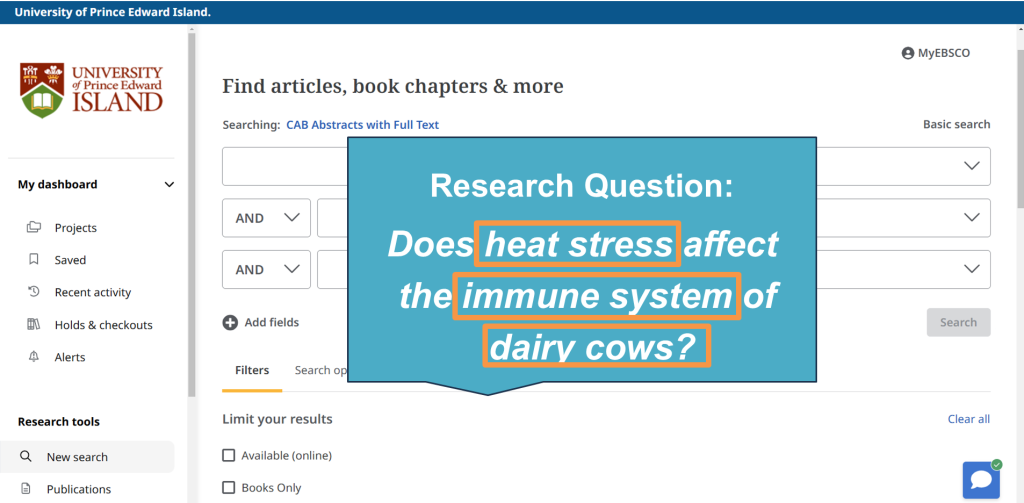
Let’s search for information on the topic Does heat stress affect the immune system of dairy cows?
In CAB, we need to search for keywords or concepts, not a whole question. One concept would be heat stress, one would be immune system, and one would be dairy cows.
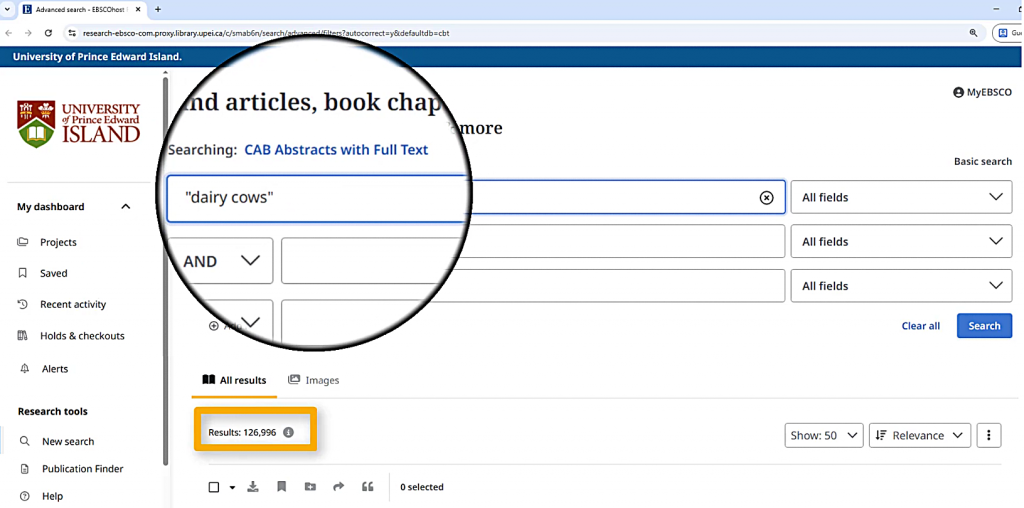
Let’s start with dairy cows. I’ll search for “dairy cows” in quotation marks, which glues those two words together. That gets about 126,000 results.
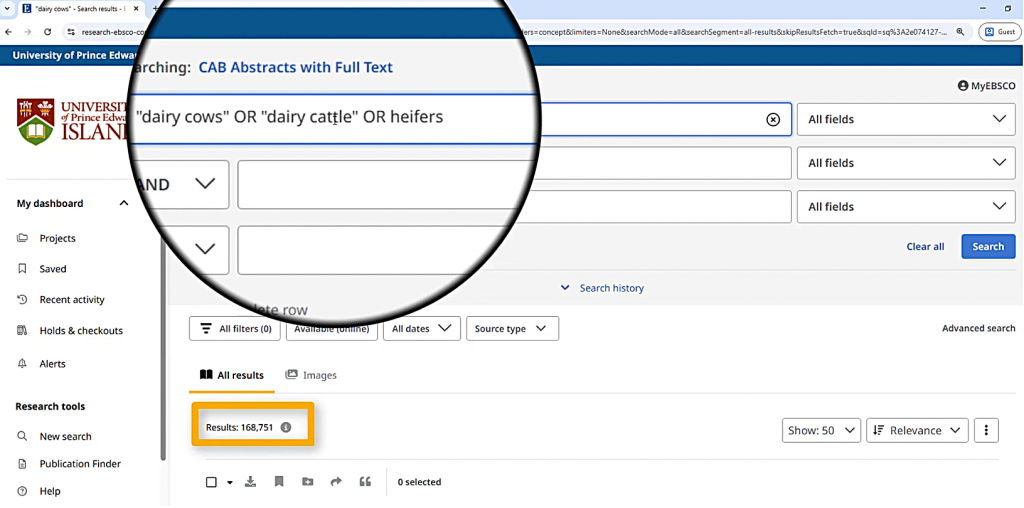
However, I also want to include other terms that might be used to refer to dairy cows, such as “dairy cattle” or “heifers.” I can add these with OR in between them, which tells the database that any one of those terms is relevant to me. Just like “dairy cows,” I’ll put “dairy cattle” in quotation marks. Heifers doesn’t need quotation marks since it’s a single word.
That search gets about 168,000 results, including all of the results that appeared when I only searched for “dairy cows.”
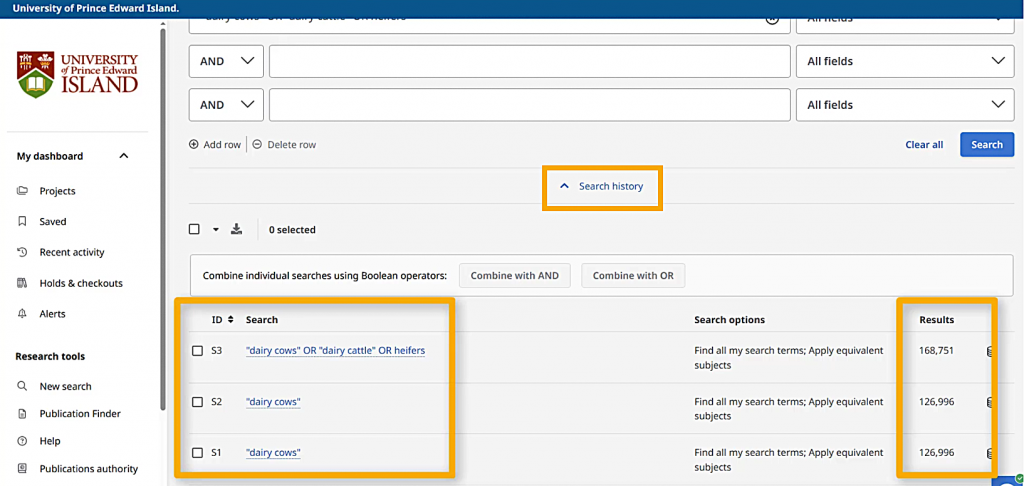
I can open the Search History drop-down to see all the searches I’ve done so far as well as the number of results.
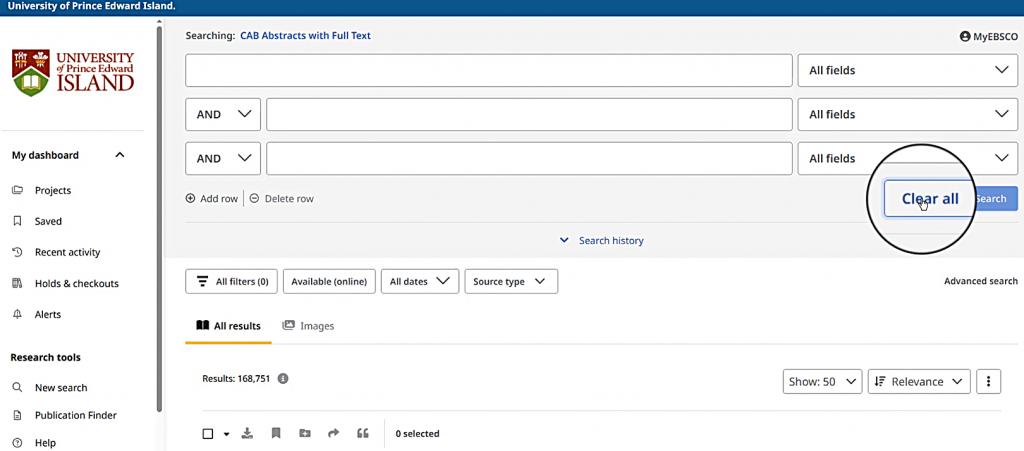
Next, I want to work on my search term about heat stress. The “Clear all” option gets rid of my previous search terms.
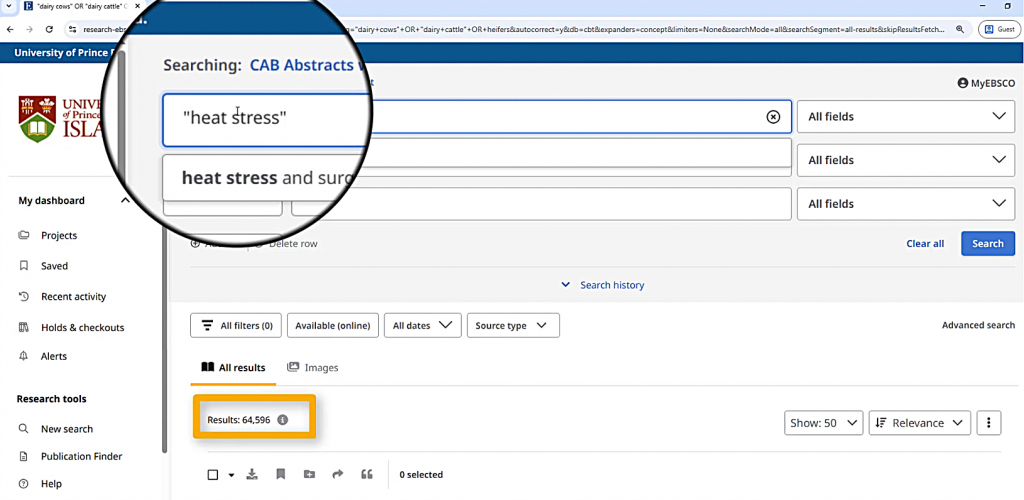
Searching for “heat stress” in quotation marks gets about 64,000 results.
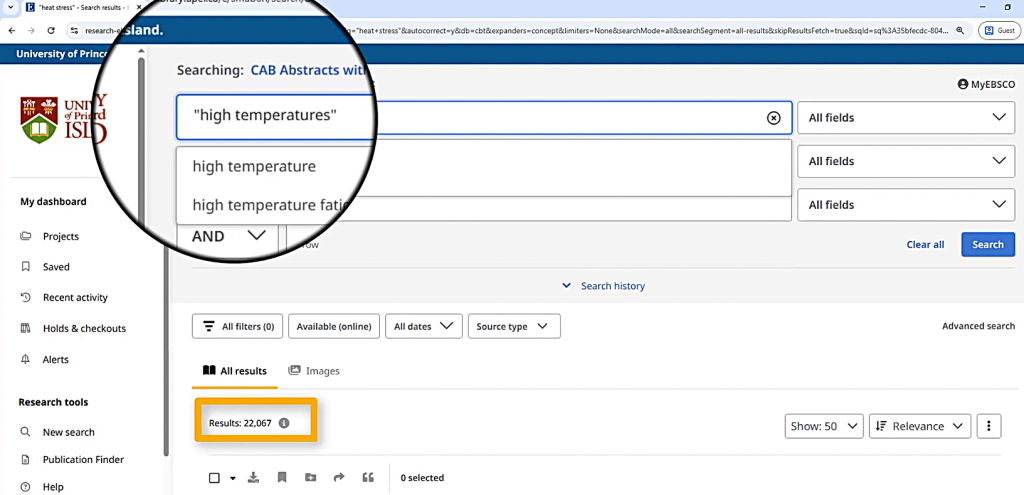
I will also try a search for “high temperatures,” which gets about 22,000 results.
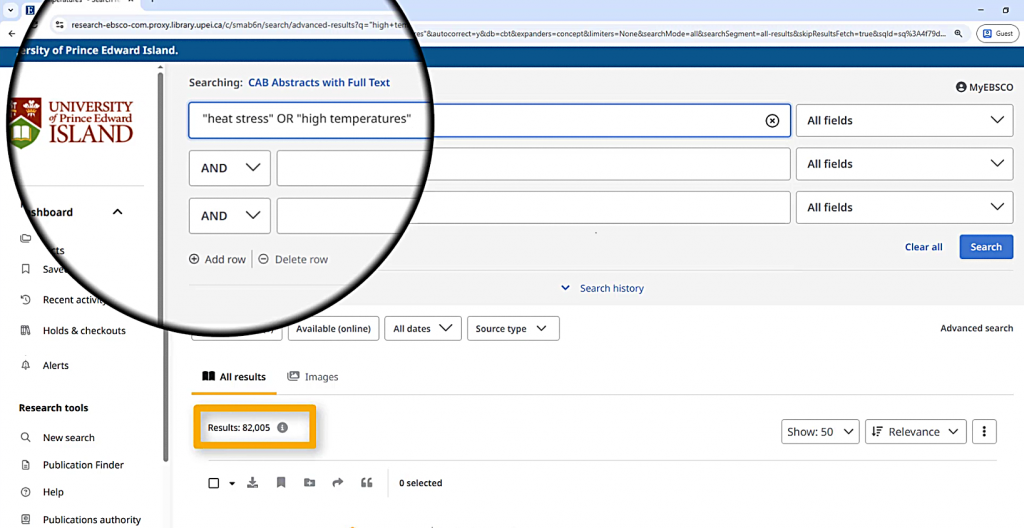
A search for “heat stress” OR “high temperatures” gets about 82,000 results, which tells me that those terms are pulling a lot of different articles.
Finally, I want to find articles about the immune system, or immune response. I can search for any term that begins with the letters “immun” by searching for immun*. This will include immune system, immune response, immunity, immunodeficiency, and less relevant terms like immunization. That’s probably why it gets over one million results!
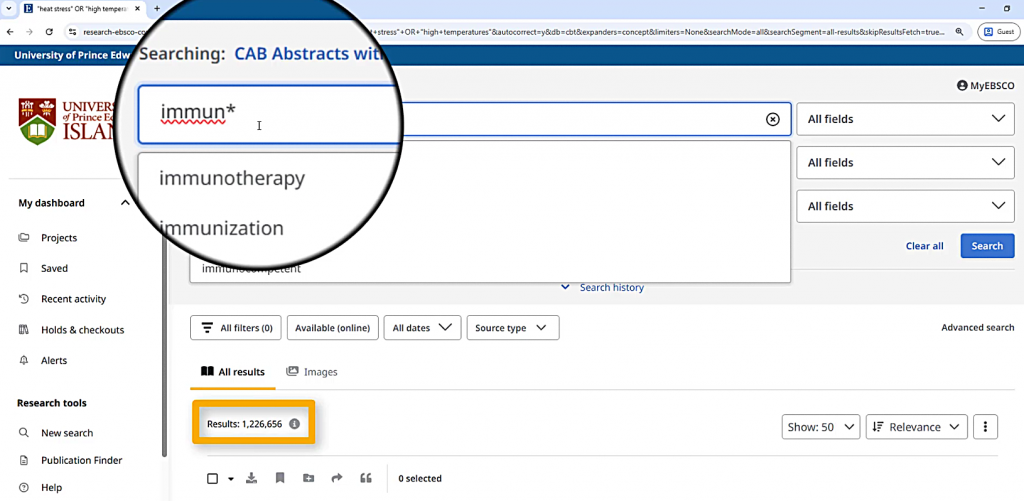
When you are building your own search, you can do more experimenting with each of your search concepts to make sure the results are focusing on the right aspect of your topic, but are still relatively broad.
Finally, I’ll use the search history function to combine the different aspects of my search. Before I start, I’ll use the “Clear all” option again. Then, I’ll choose my favourite search for dairy cows, my favourite search for heat stress, and my favourite search for immune system. I want to combine these using AND. That means that a good search result will include a term from each of the searches I’ve picked.
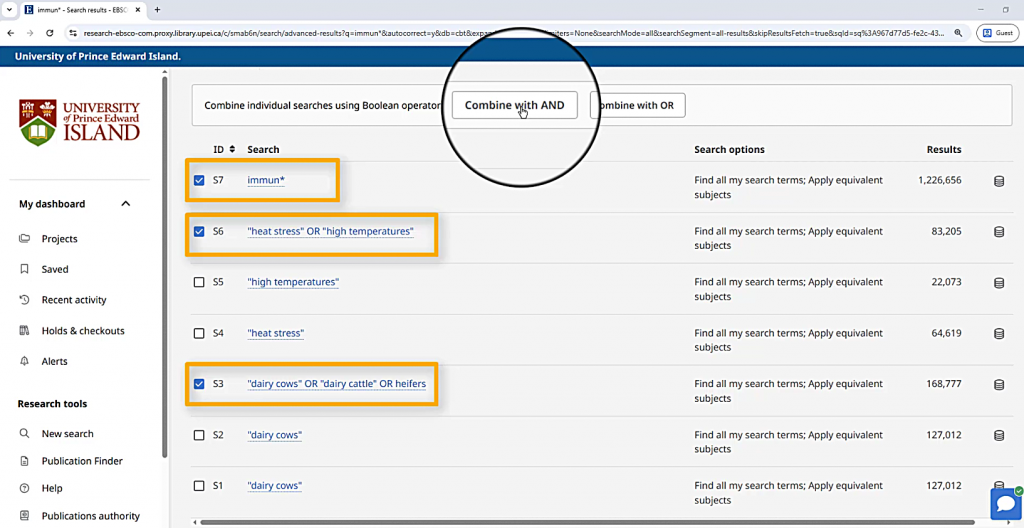
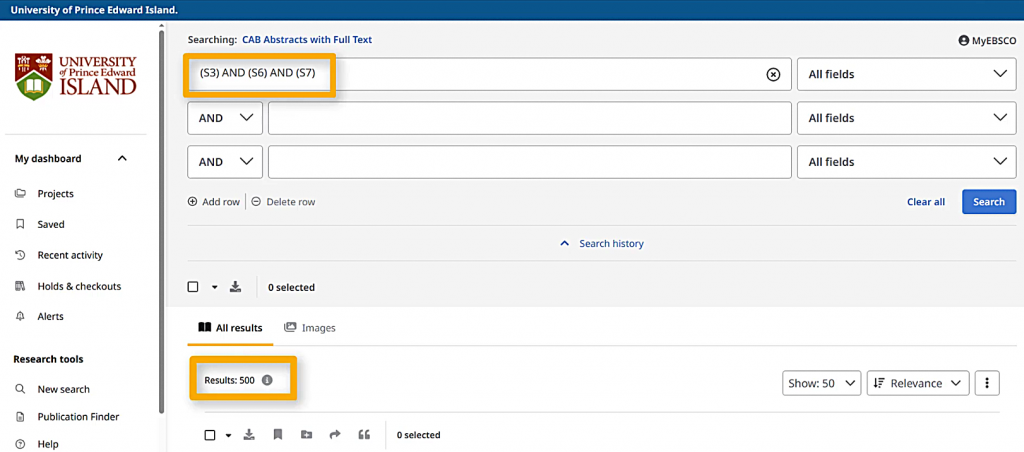
When I choose “Combine with AND,” a new search string will appear in my search box, referring to my past searches only by their numbers. This search gets about 500 search results, which should all have something to do with dairy cows, hot weather, and something related to the immune system.
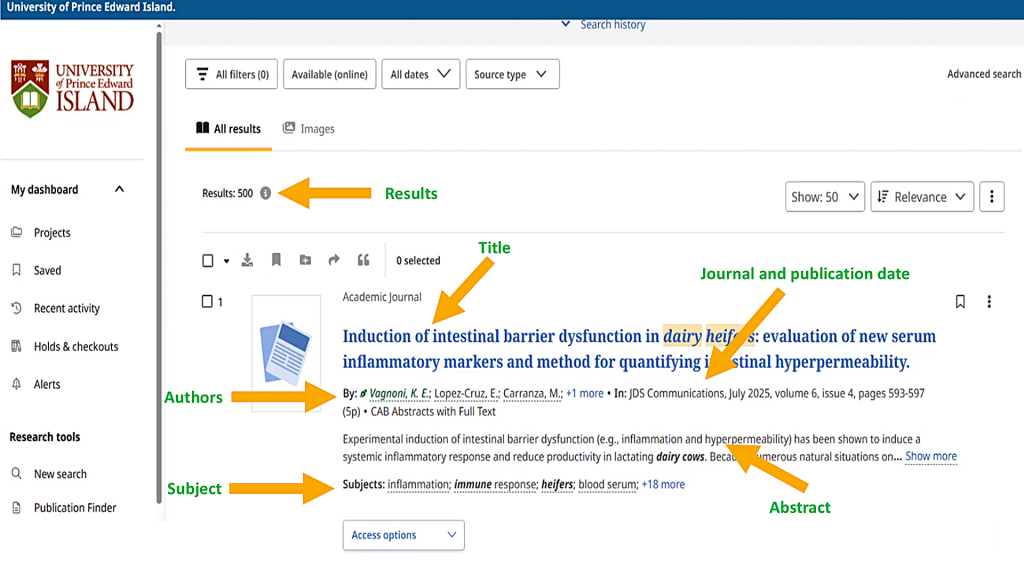
I can see the title of each result, the list of subject terms related to the result, the journal and publication date, the authors, and the very beginning of the abstract.
The buttons under the search box let me filter my search results.
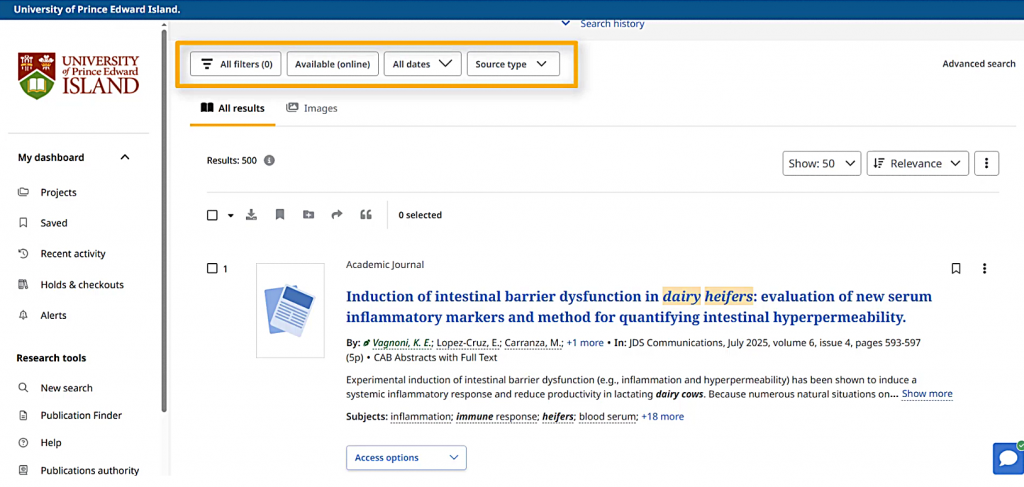
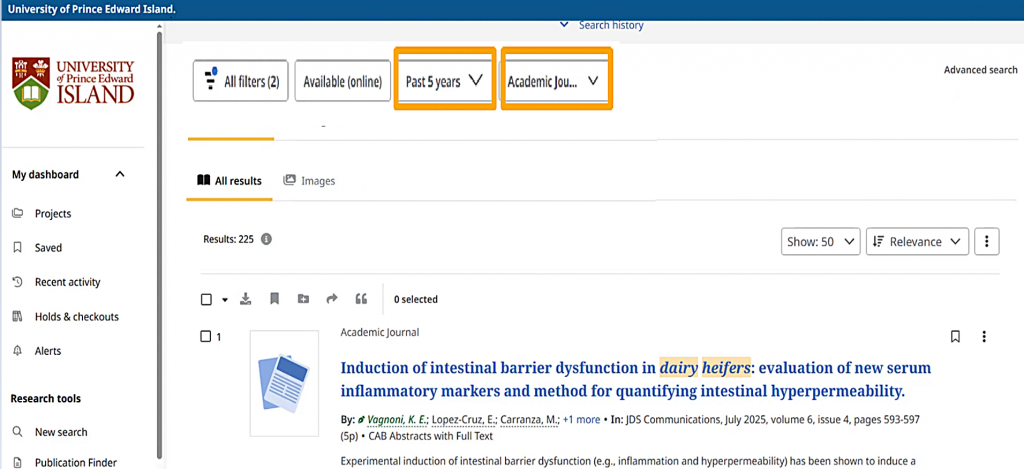
For example, I can choose only the results that are from Academic Journals by using the “Source type” option.
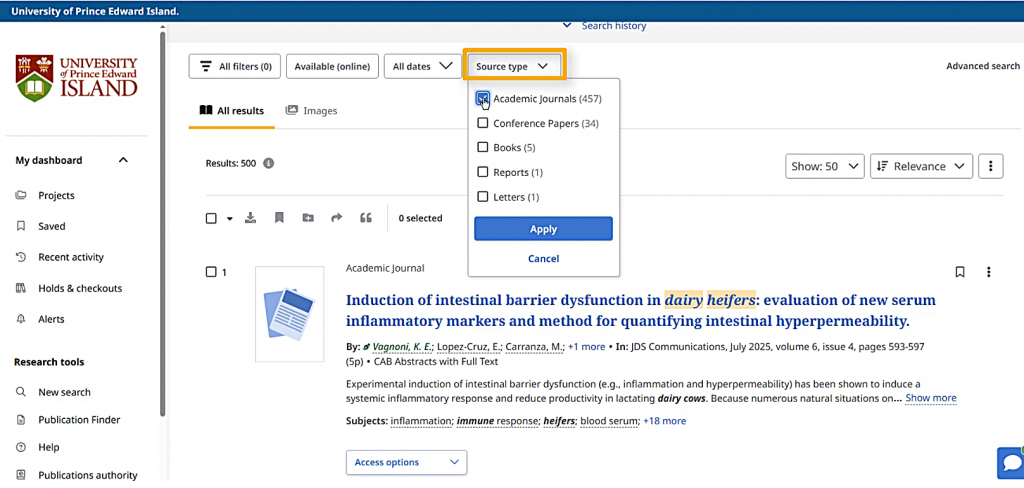
Under the “All dates” button, I can choose to only see results from the past 12 months, 5 years, or 10 years,
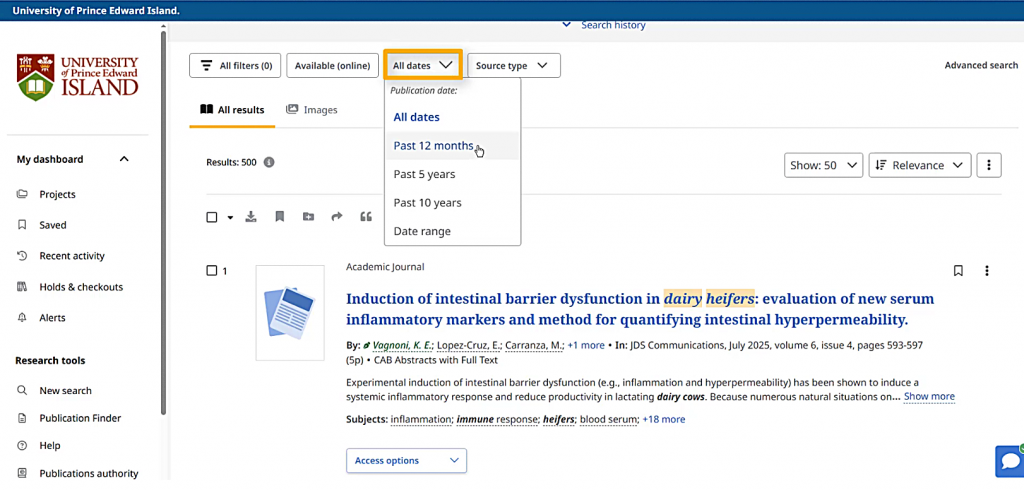
but I can also use the “All filters” button to open the filters window and set a more specific time period in the “Publication Year” section.
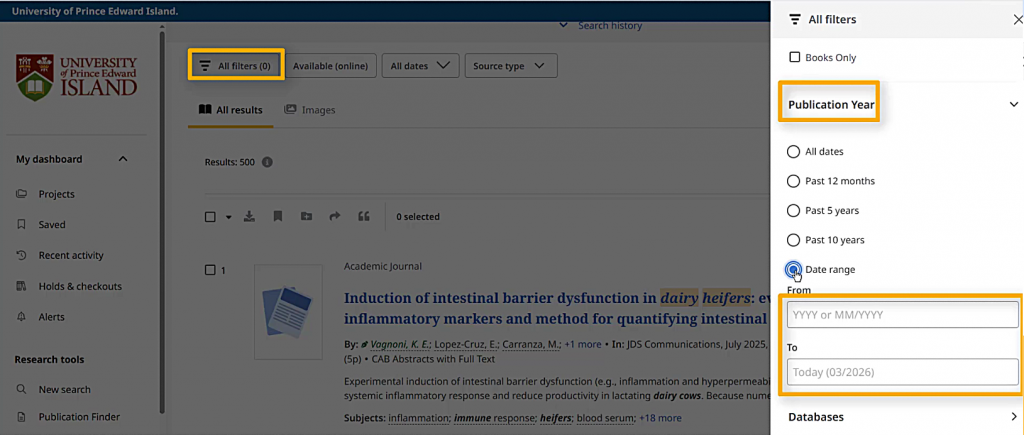
I can also use the “All filters” menu to find only items in a particular language, or any other requirements I think are useful.
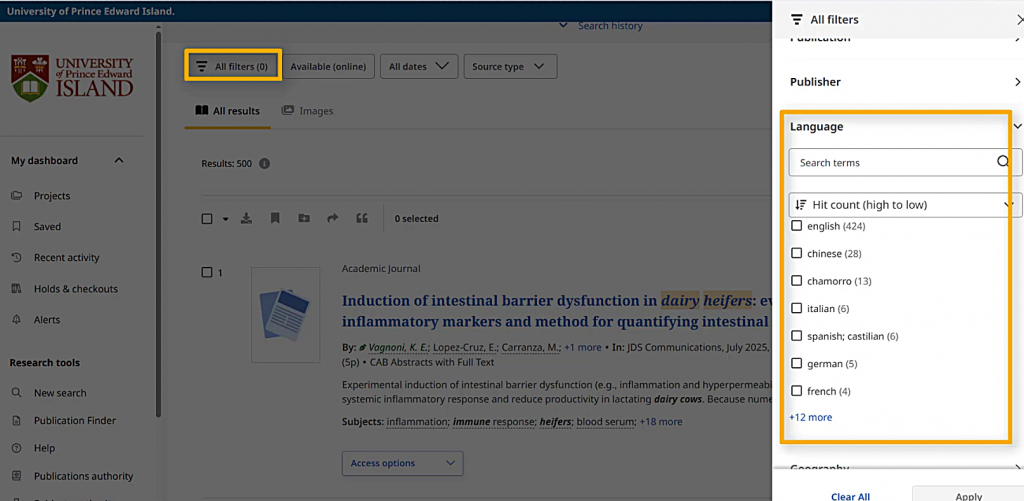
But for now, let’s look at all of the Academic Journal article results from the past 5 years.
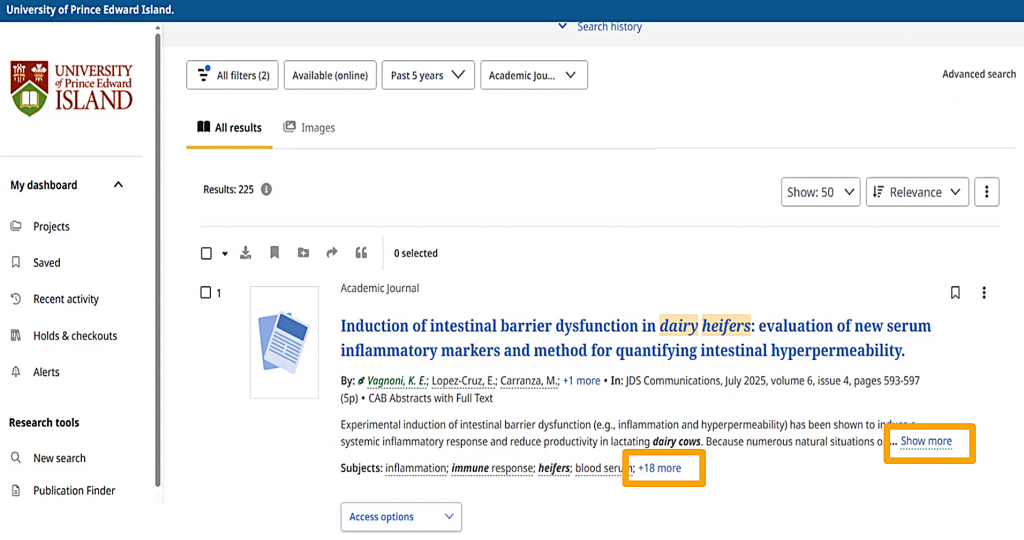
If I want to know more about a specific search result, the “show more” and “plus more” links show me more of the abstract and all of the subject terms.
I can also click on the title to go to a page with more information,
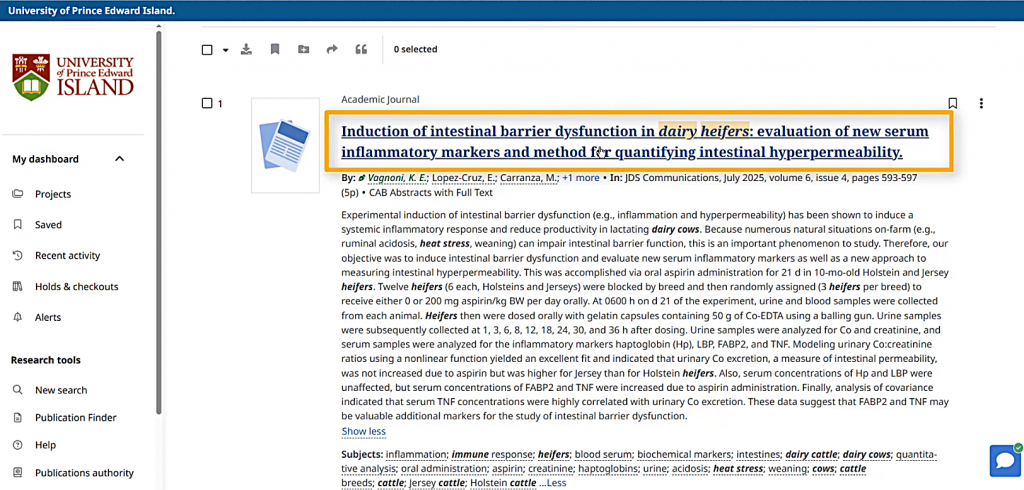
including more information about the journal in which this article was published,
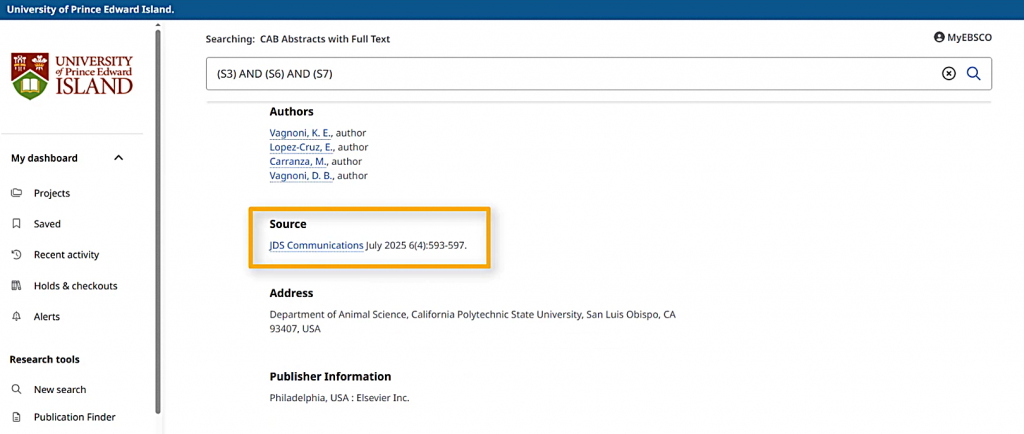
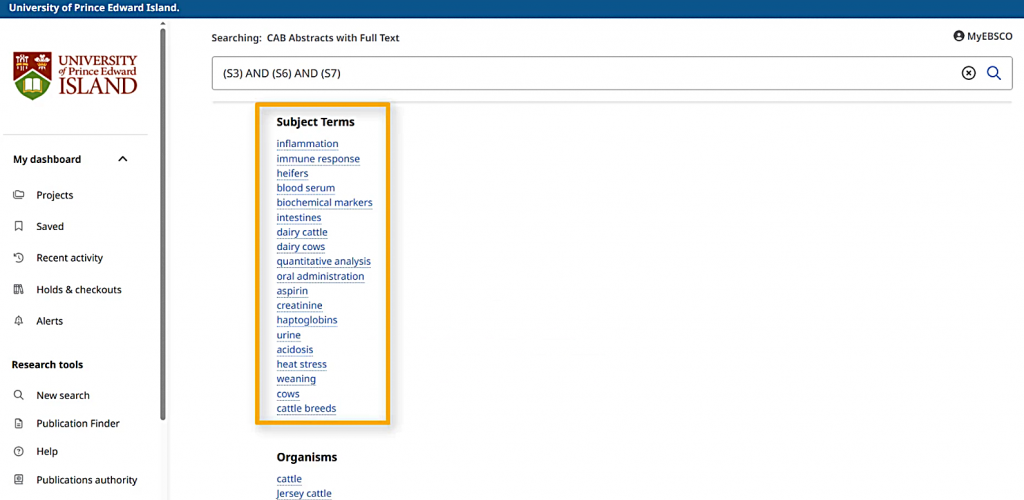
the subject terms
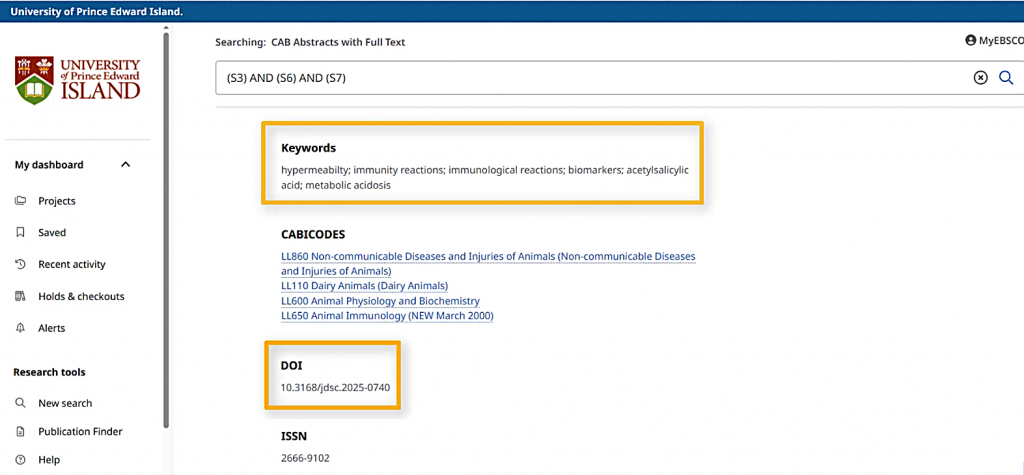
and other keywords, and the DOI.
The subject terms are a good place to look for other search term ideas. For example, if I’m also interested in inflammation as a term related to immune response,
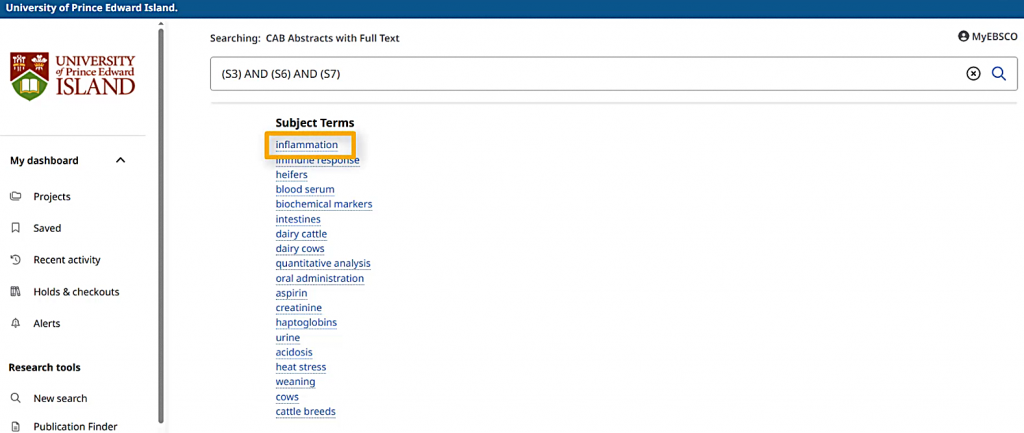
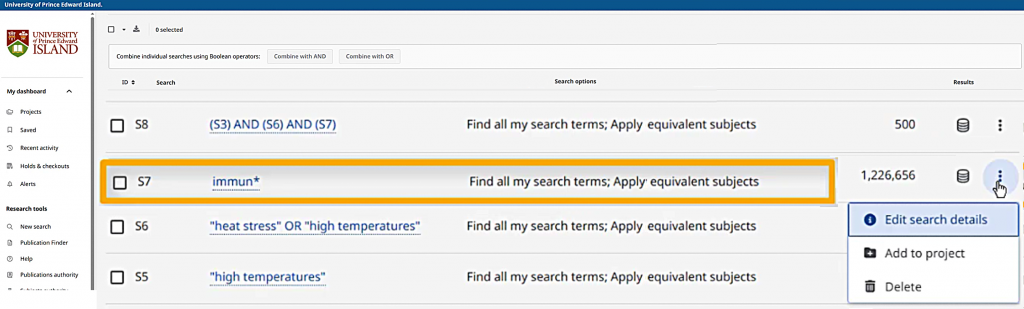
I can open the “Search history” dropdown and choose “Edit search details” from the menu next to my immune-related search if I want to add this term. On the “Search details” page, I need to use the “Edit search” option to update the greyed-out Query box.
This option opens another page where I can add OR inflammation to my search.
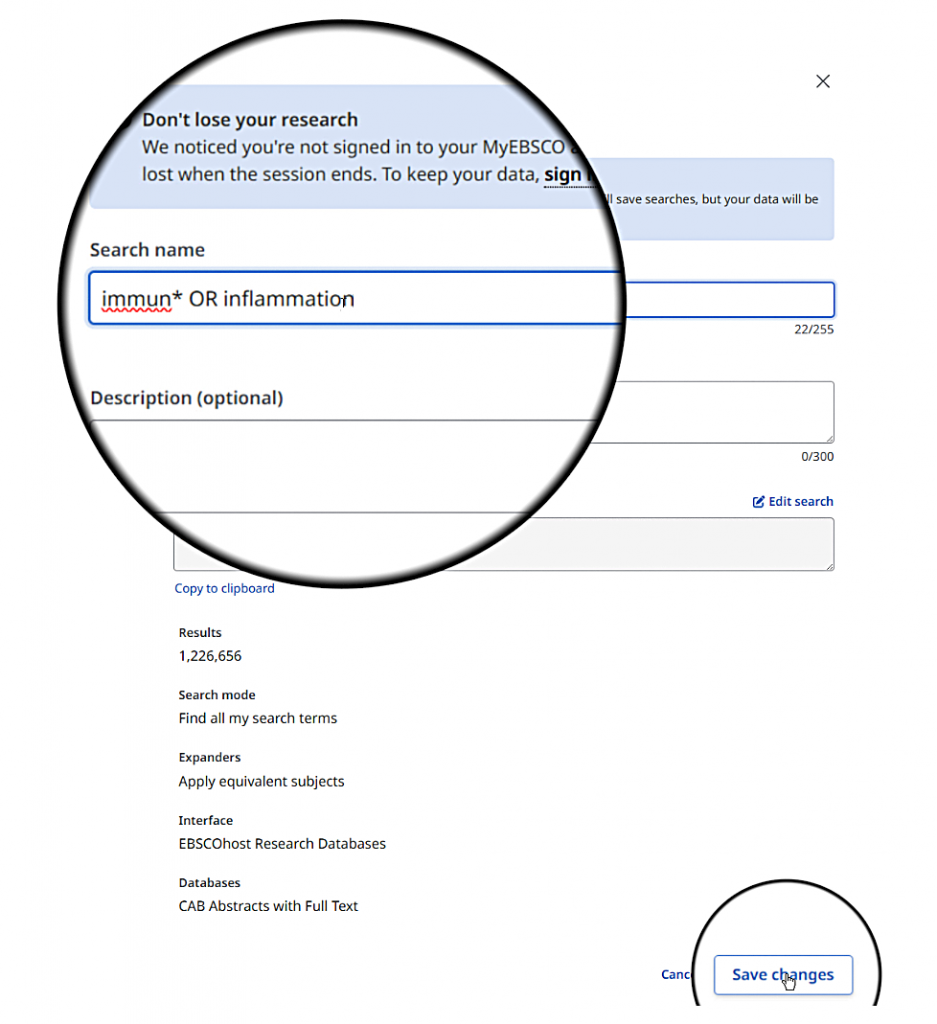
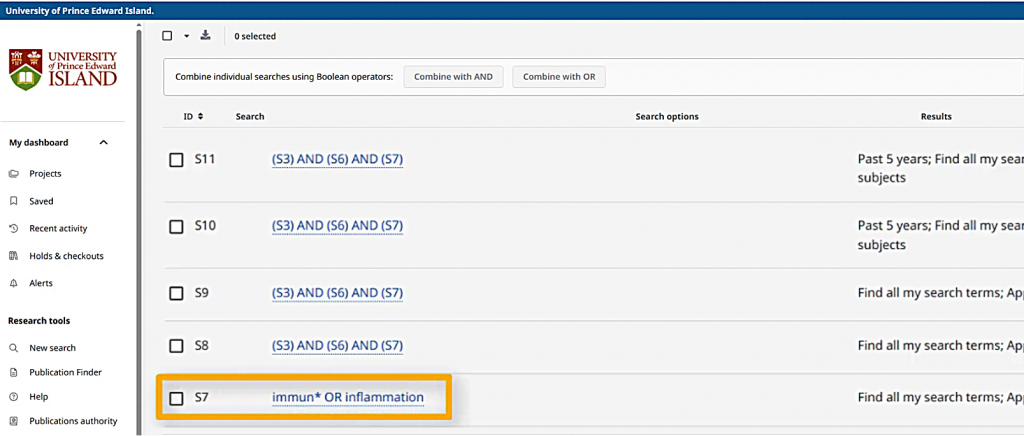
Once I’ve chosen “Update search” and then “Save changes,” I’ll be taken back to my combined search, and this new term will be included.
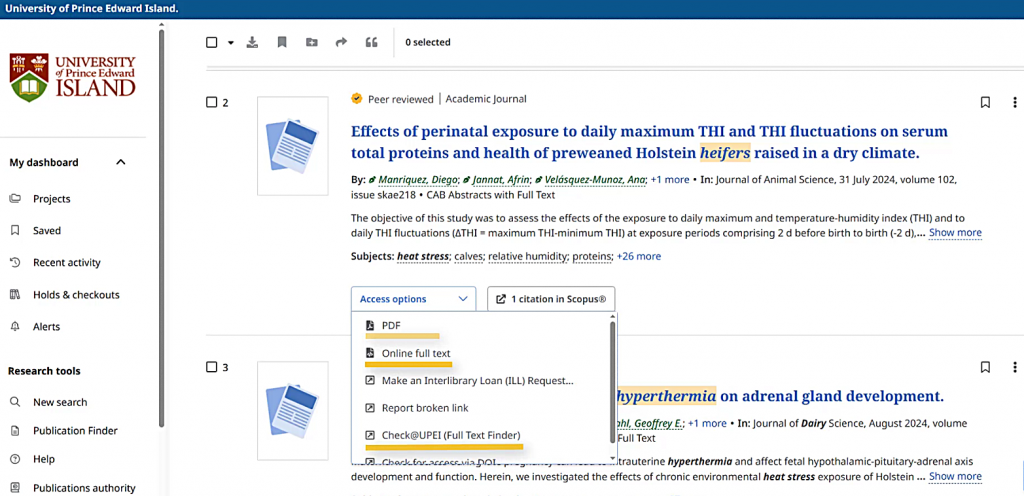
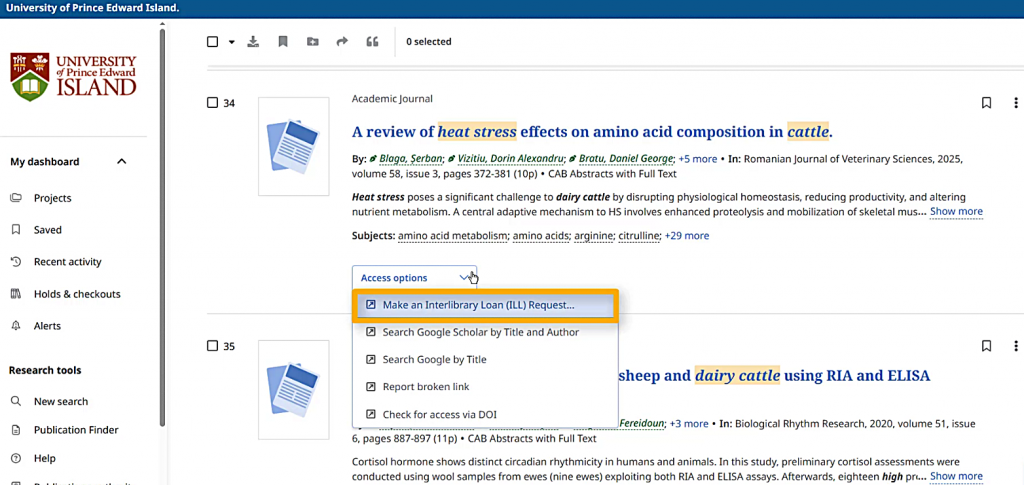
Each item has a dropdown menu labeled “Access options.” I can access the full text by choosing a link that mentions "full text," a file format such as PDF, or "Check@UPEI (Full Text Finder)". Different items might have different sets of links. The PDF and “Online full text” links will open in the current tab, while other links will open in a new tab or window.
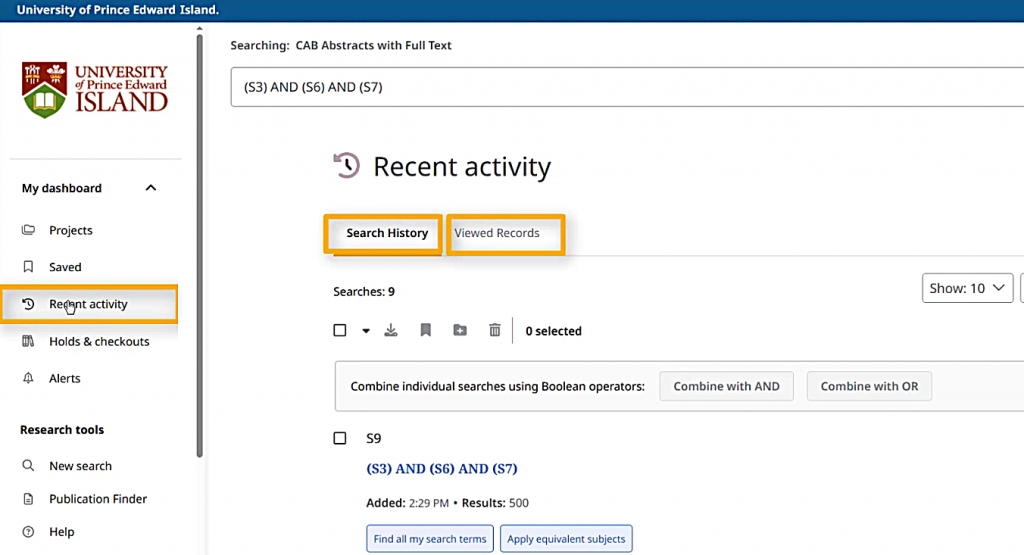
If I want to see an article that I clicked on earlier, I can use the “Recent Activity” section in the menu on the left side of the page. On this page, there are two sections: Search History and Viewed Records. Search History is a list of all the searches I’ve run in this session, with the option to run them again by clicking on the search terms. The “Viewed Records” list shows the item records I’ve opened during this session.
If an item only has the “Make an Interlibrary Loan (ILL) Request” link, that means that we don’t have immediate access to this article, but we may be able to borrow a copy for you from another library.
To learn more about Interlibrary Loan, you can watch the Interlibrary Loan tutorial or go to https://libraryupei.ca/ill
If you need more help, AskUs at the service desk, phone us at (902)-566-0583, send an email to reference@upei.ca, or use the chat tool on the library website.
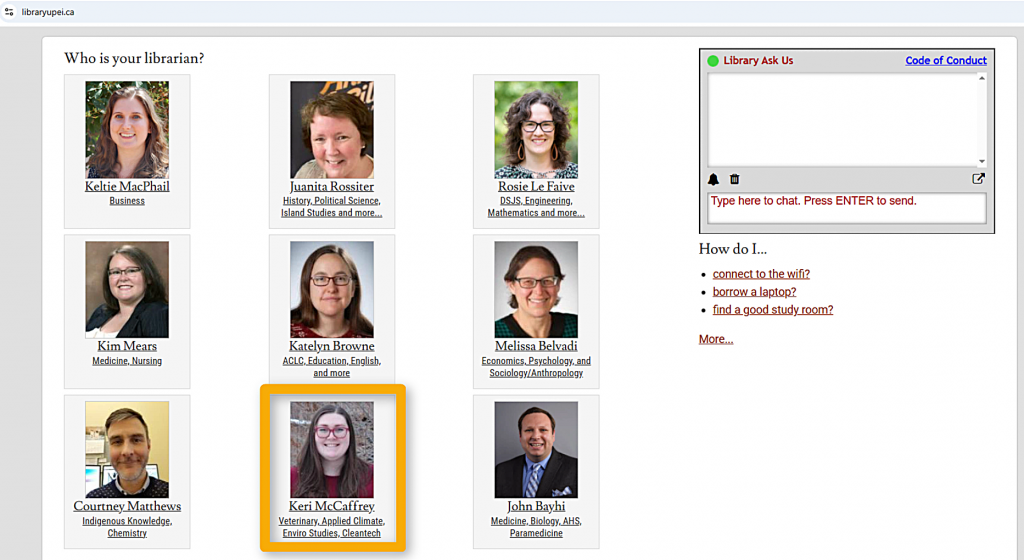
You can also find the veterinary medicine librarian’s information on the library homepage.
We are here for you.
A video version of this tutorial is also available.